Screenshots show the Vietnamese interface of version 0.1.5; switch the app to English from the account menu.
This guide follows the app's sidebar menu. Each section has short instructions and screenshots numbered 1–33 in menu order.
Button colors in the app: navy is the main action on a screen; red starts creating a video and costs money; red outline deletes or cancels.
The app also has an English interface: open the account menu at the bottom of the sidebar and choose English. Screenshots below show the Vietnamese interface.
Sign in and first-time setup
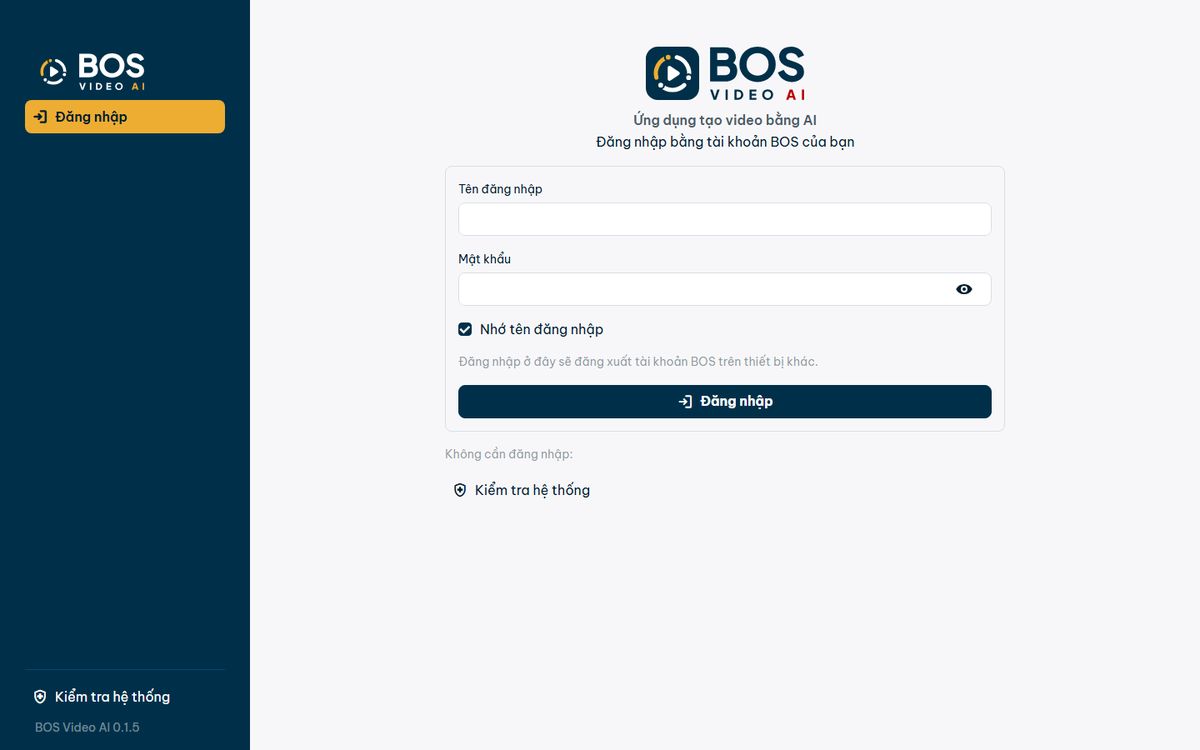
- Open the app and sign in with your BOS account. Tick “Remember username” so next time you only type your password. Each account can be signed in on one computer at a time: signing in on this computer signs out the other one.
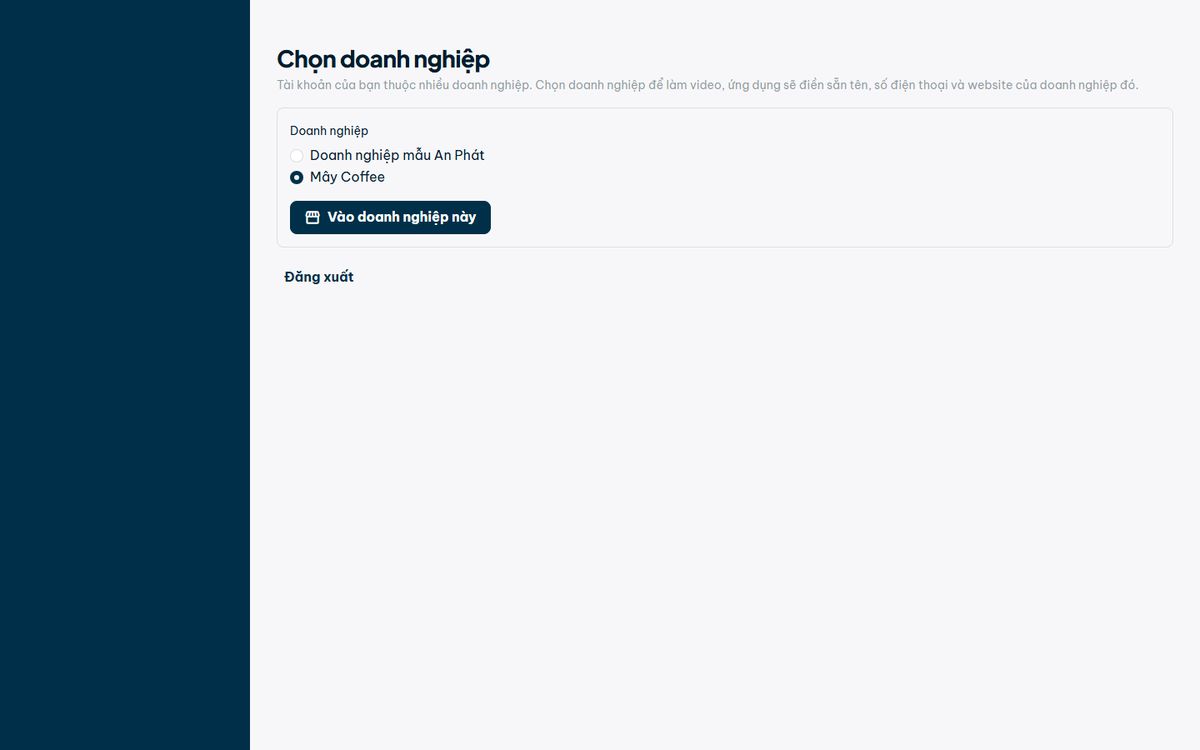
- If your account belongs to one business, the app opens that business directly. If it belongs to two or more businesses, the app shows the “Choose your business” page each time you sign in: choose a business and click “Open this business” (the business you used last is listed first and preselected). Switch to another business at any time with “Switch business” in the account menu.
- Reloading the page (F5) does not sign you out; if you quit the app completely, you sign in again next time. The “System check” button works even before you sign in.
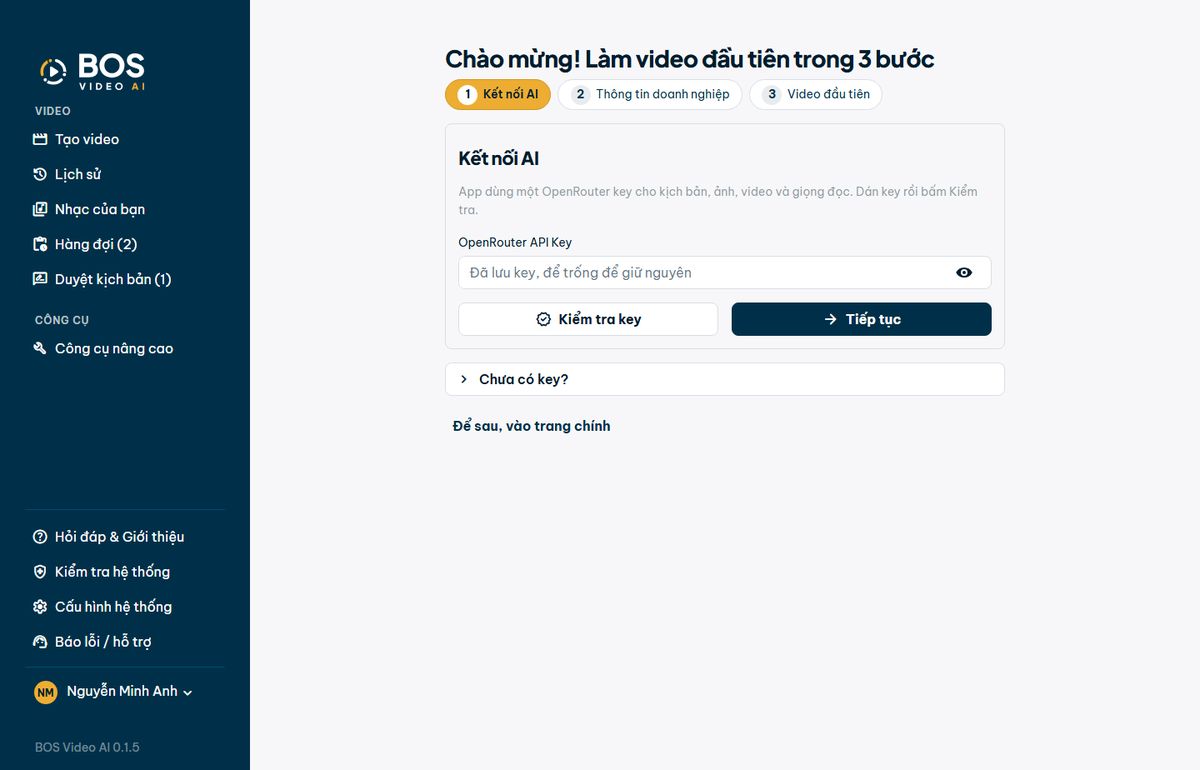
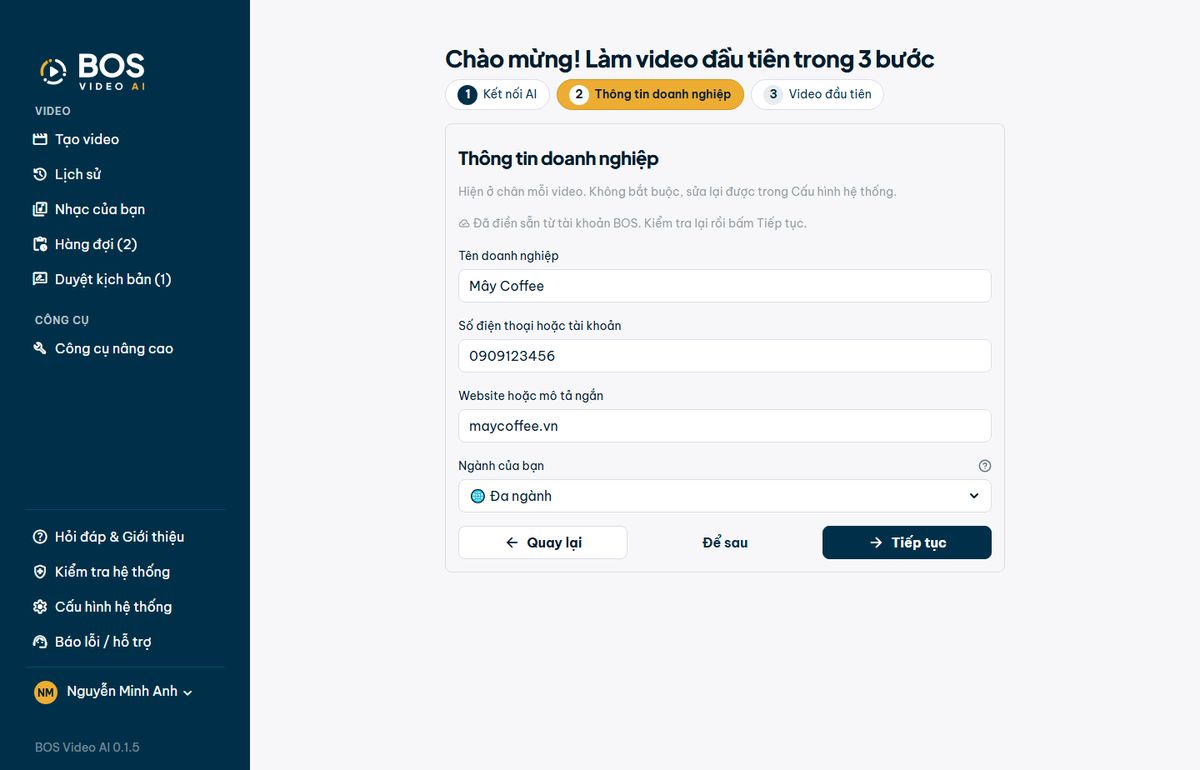
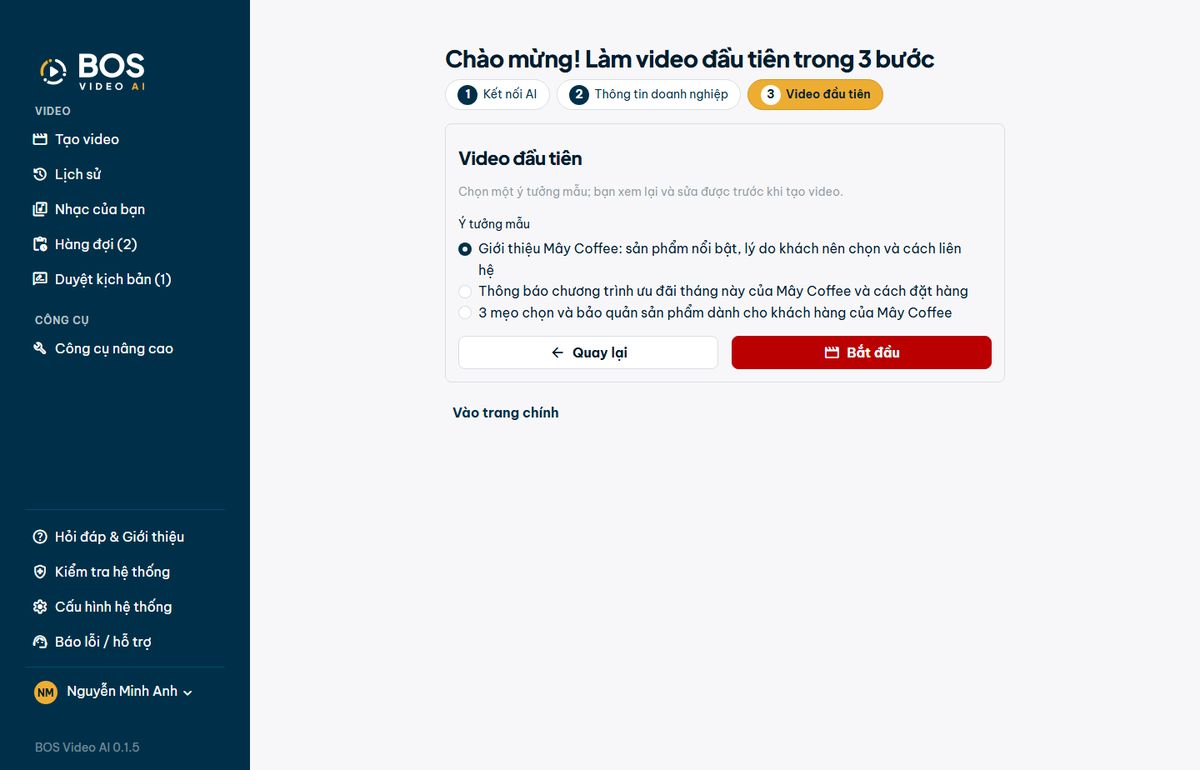
- On first use, the setup assistant takes you through 3 steps: connect an AI service (paste the key, then click “Check key”), review the business details shown in the video footer, and pick a sample idea for your first video, then click the red “Start” button. If you don't have the information for a step yet, click “Later”. You can reopen the assistant at any time in Settings.
- Business details (name, phone number, website) come from the BOS account: the business owner enters them once in BOS and every employee gets them. Fill in any field BOS leaves empty in the app; fields you typed or edited are kept. If all three fields are filled, the assistant skips this step.
Create video: one-click product review
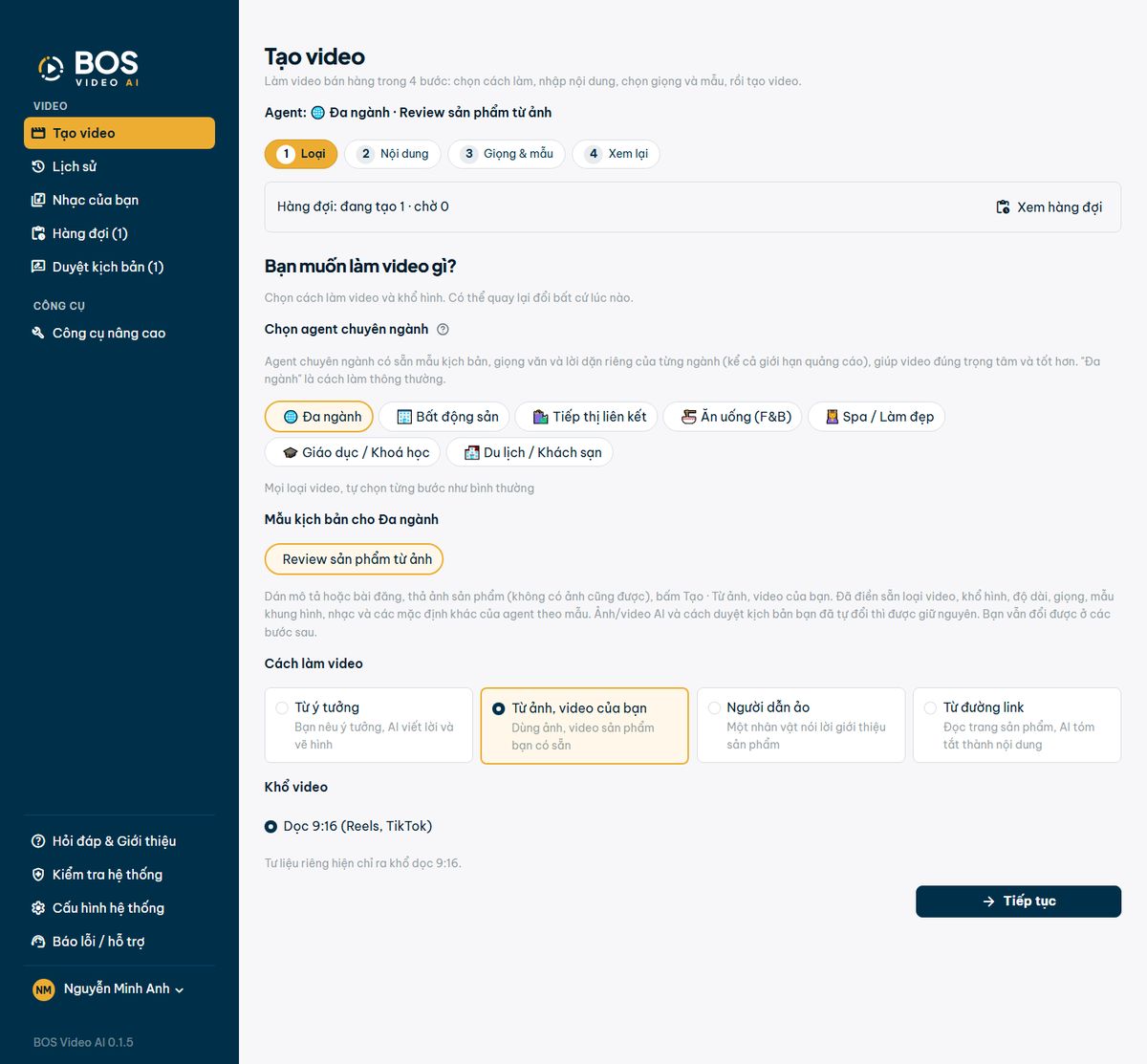
- The “Create video” page has 4 steps: Kind, Content, Voice & template, Review. Click “Continue” to go to the next step and “Back” to return to the previous one. The top bar shows how many videos in the queue are running and how many are waiting.
- Step 1: keep the “Multi-industry” agent (or “Spa / Beauty”) and click the “Review a product from photos” template. The app fills in the video kind, 9:16 vertical format, 30-second length and other defaults.
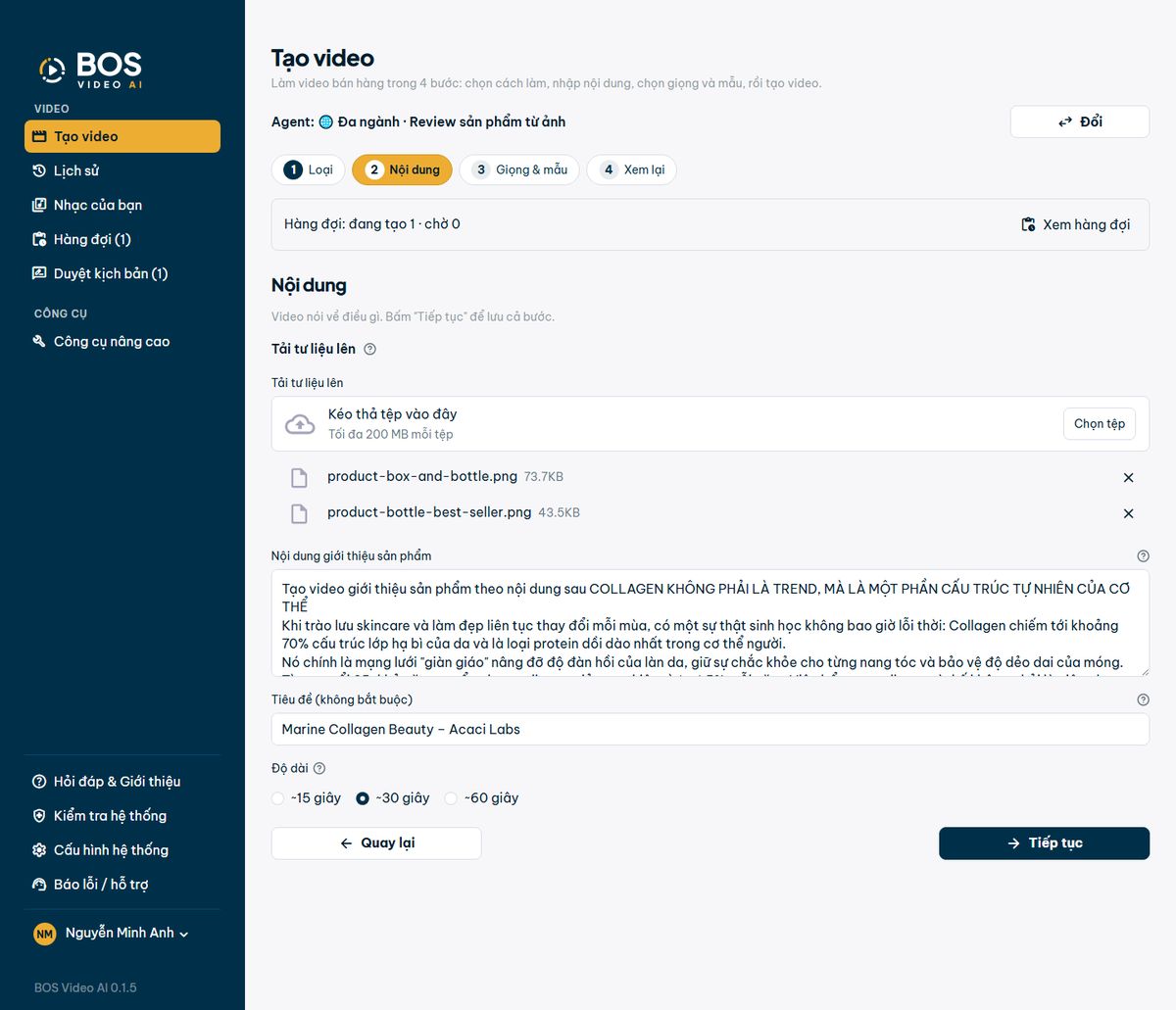
- Step 2: paste a post, a description or a few lines about the product into the “Product description” box. Long or short, with or without Vietnamese diacritics, all work. Drop in product photos (phone photos and iPhone photos are fine; you can still make a video without photos). The app enhances the photos and uses only the information you give. It does not add benefits or figures of its own.
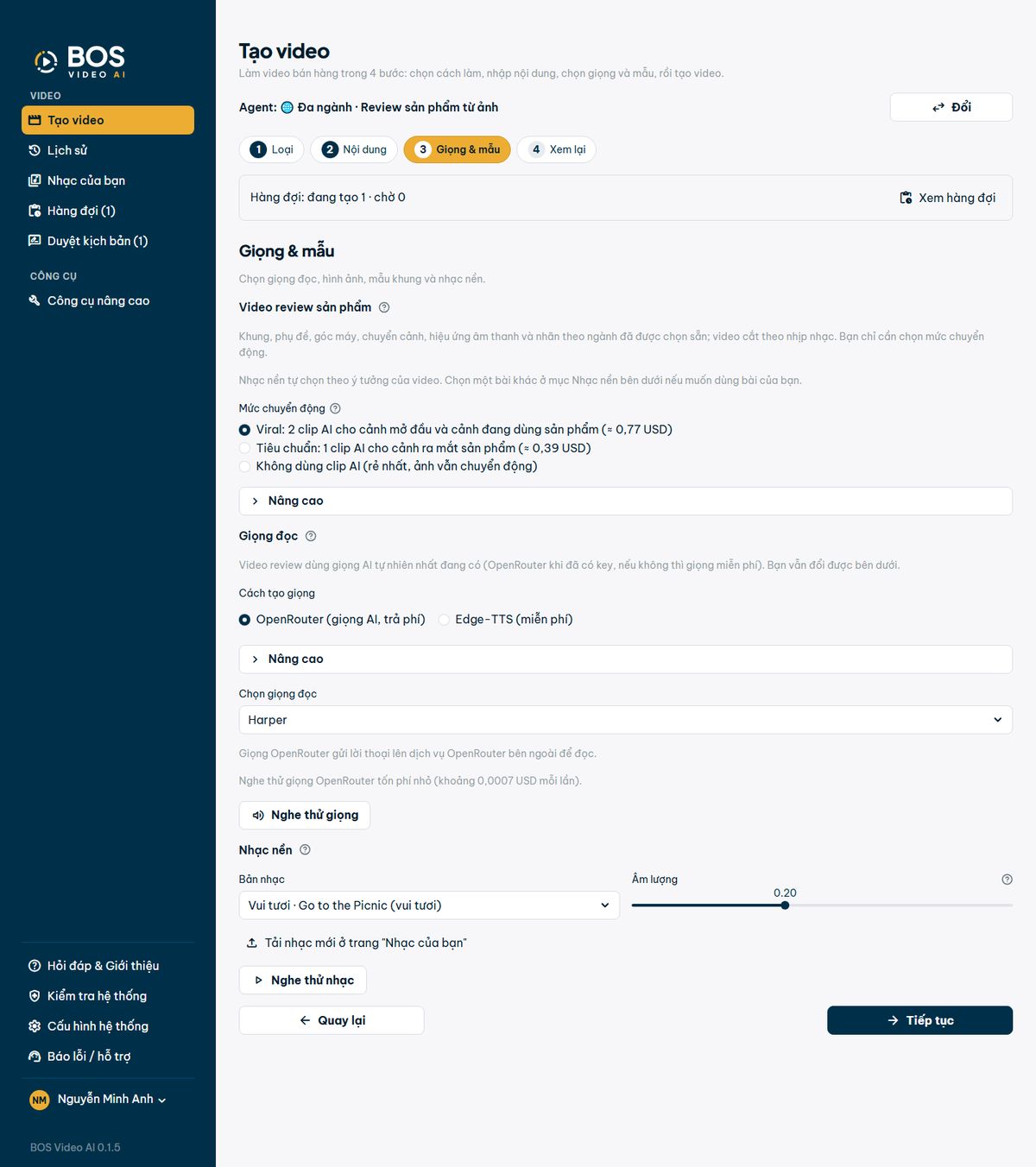
- Step 3: you only need to choose the motion level. “Viral” uses 2 AI clips (3 clips if the video is longer than 37 seconds) for the opening scene and the product-in-use scene. “Standard” uses 1 clip for the product reveal scene. “No AI clip” is the cheapest, and the photos still move. Each 5-second clip costs about 0.385 USD. Frame, animated captions, camera angles, transitions, sound effects and industry labels are preselected; the video is cut to the beat of the music. You can change the voice and background music in the same step. If you leave the music on default, the app picks music that fits the idea.
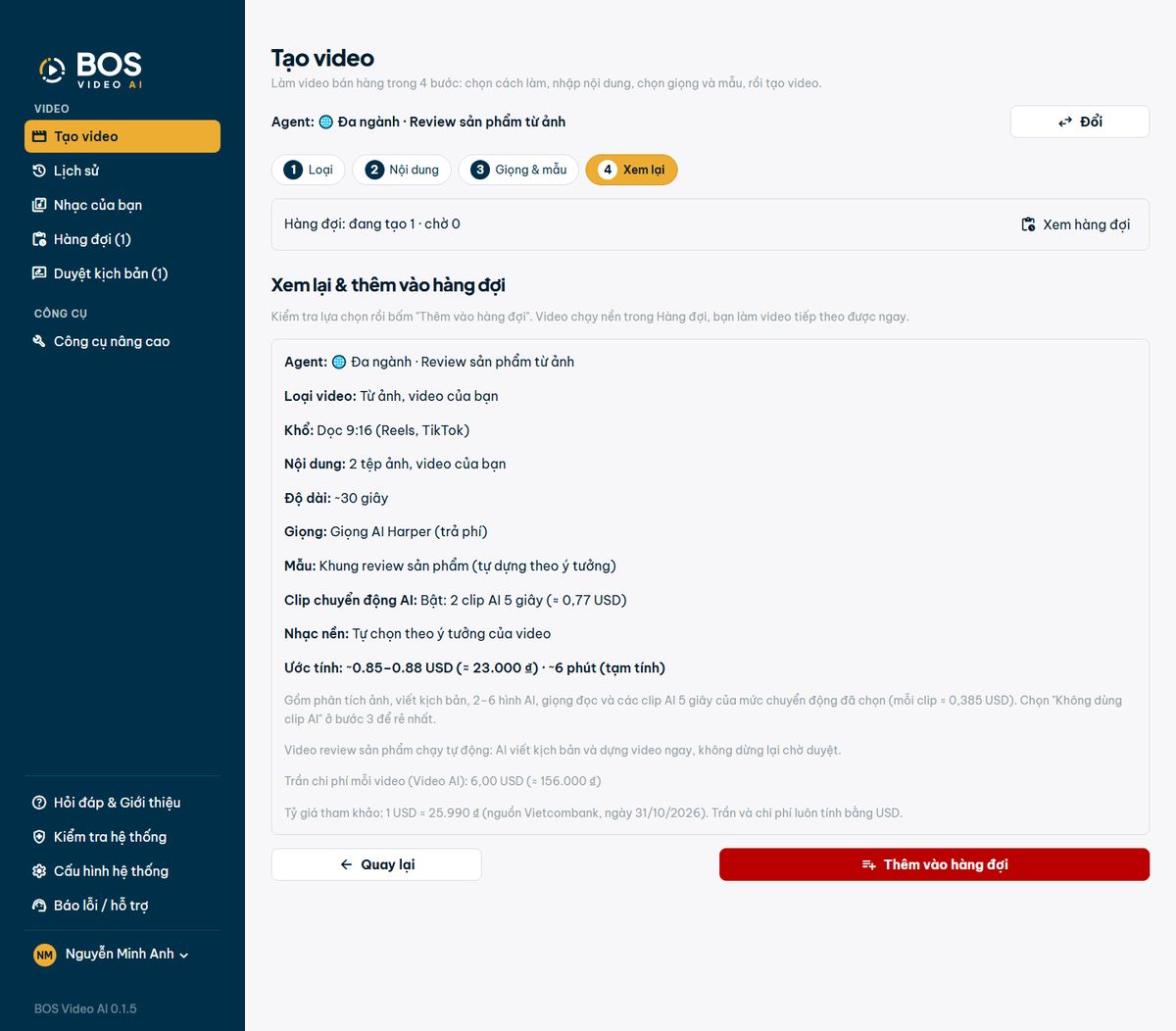
- Step 4: review your choices, the estimated cost (USD and VND) and time, and the video's cost cap. Click the red “Add to queue” button: the video runs in the background and the app returns to Step 1 so you can start the next video right away. Review videos always run automatically and do not stop for script review.
- Behind the scenes, the AI comes up with 3 ideas, picks the best one, tries 3 opening lines, writes the script, and builds a reviewer holding the right product, big-text scenes for figures and a call-to-action scene at the end.
Create video: industry agents and quick fill
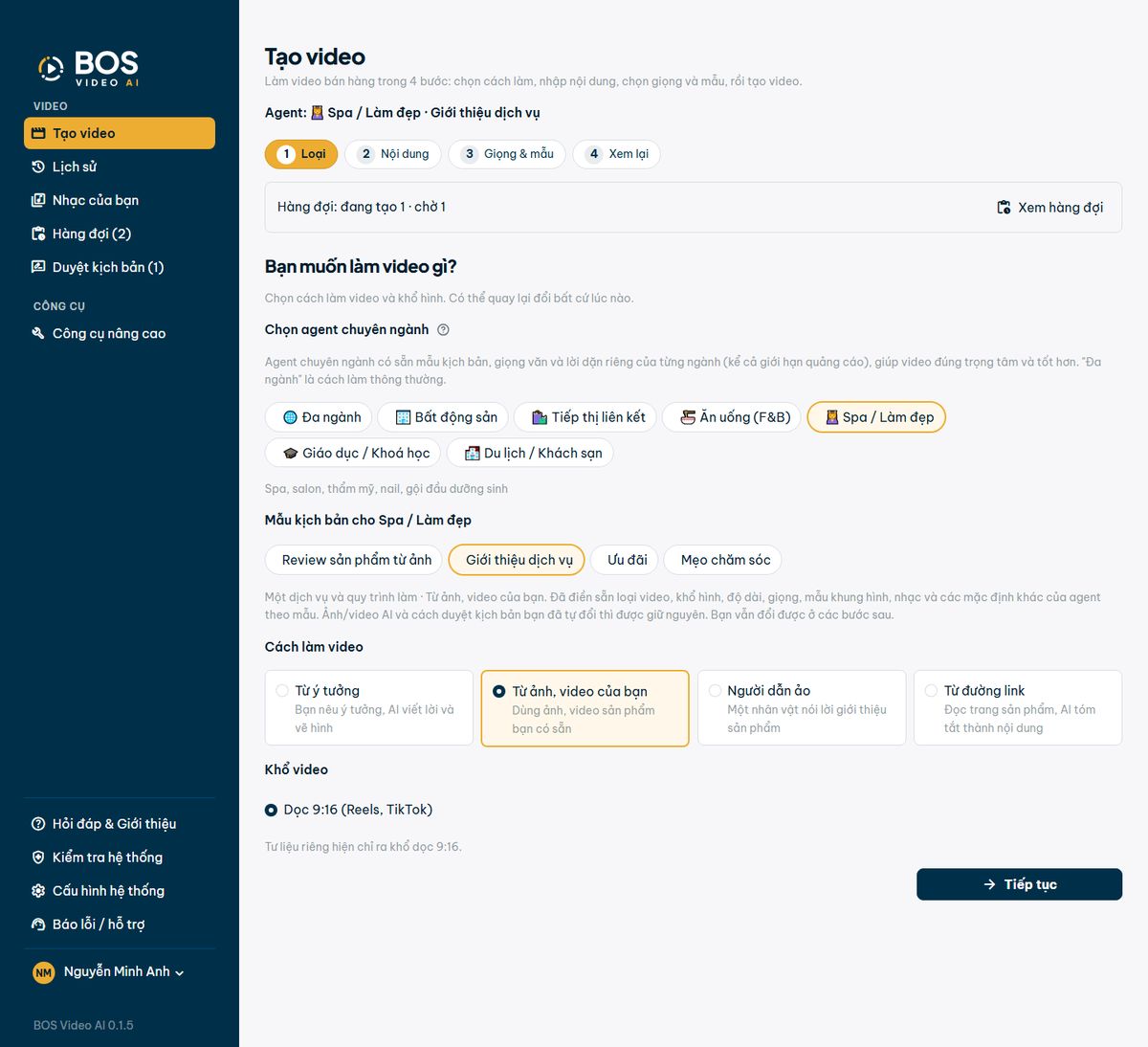
- There are 7 agents: Multi-industry, Real estate, Affiliate marketing, Food & beverage (F&B), Spa / Beauty, Education / Courses, Travel / Hotels. Each agent has its own script templates, writing style and industry instructions, including advertising limits.
- Choose a script template (for example “Service introduction”), and the app fills in the steps.
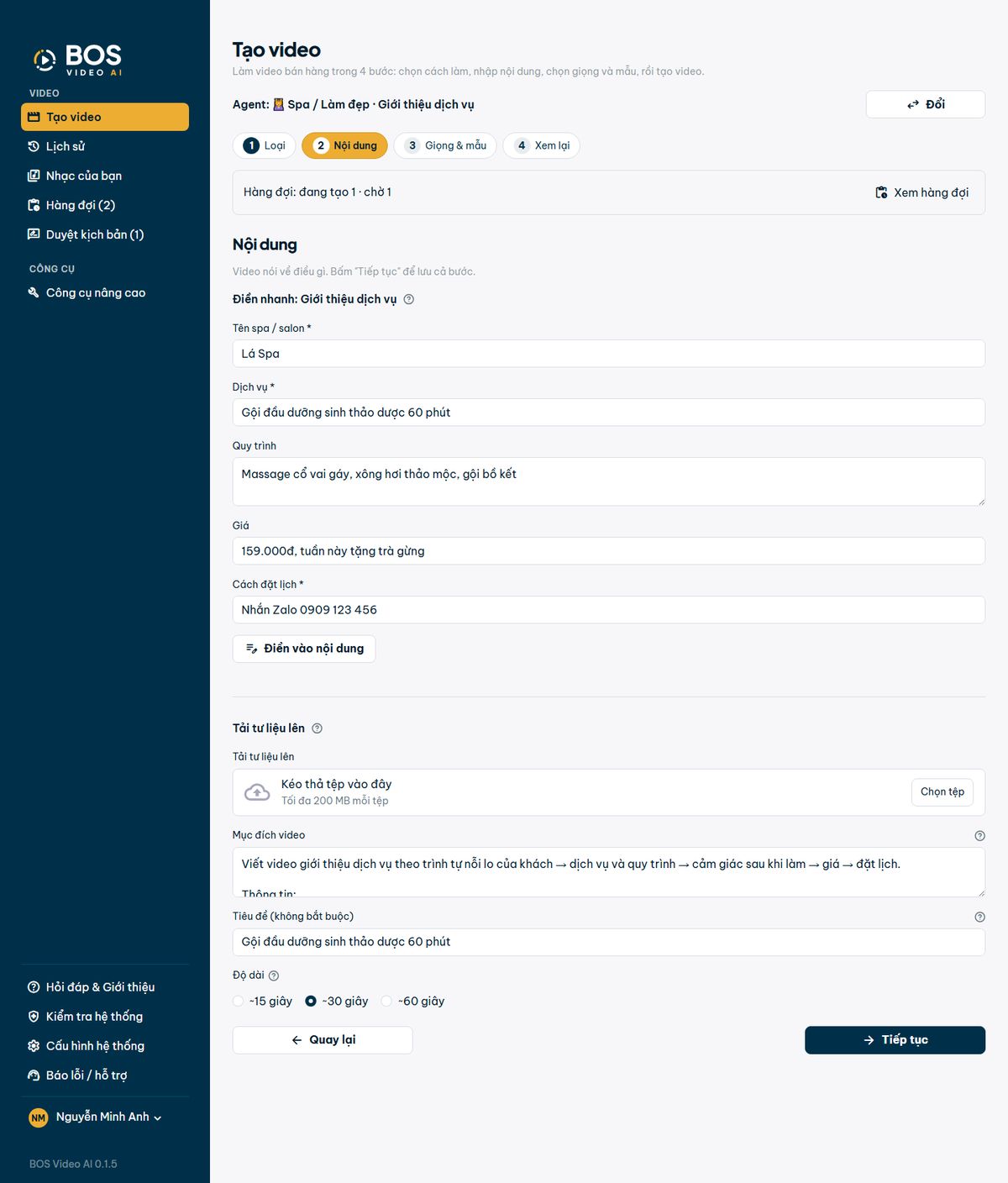
- In Step 2, fill in the industry's quick-fill fields (fields marked * are required), then click “Fill the content”: the app combines them into the content sent to the AI. If you have already edited the content box yourself, the app asks before replacing it.
- You can edit agents or create new ones in Settings, on the “Industry agents” tab.
Create video: from your images and videos
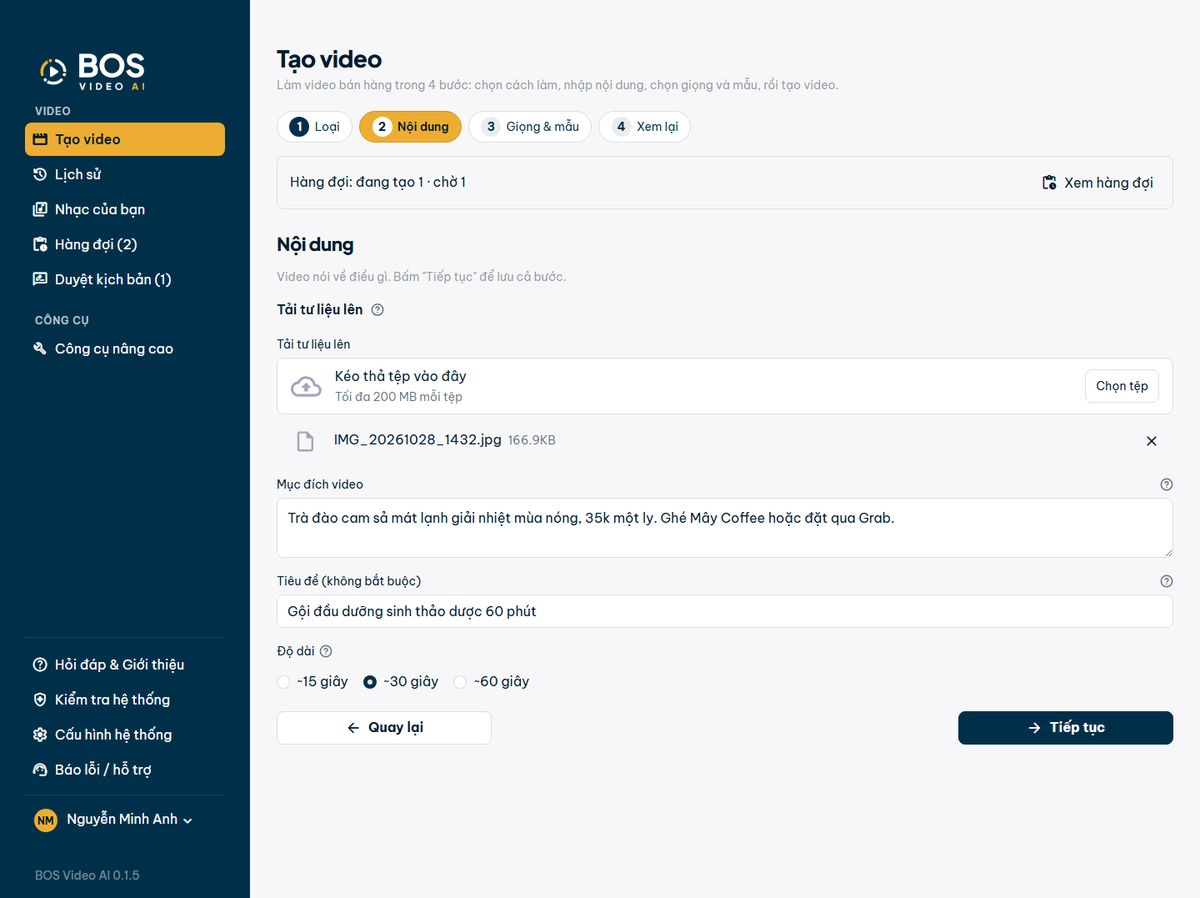
- Choose “From your images and videos” in Step 1, then upload photos or pre-recorded videos in Step 2 with a few lines of description. The app rotates photos the right way up, adjusts brightness and sharpens them. Pre-recorded videos are stabilized, blurry or shaky parts are cut, and background noise is filtered out.
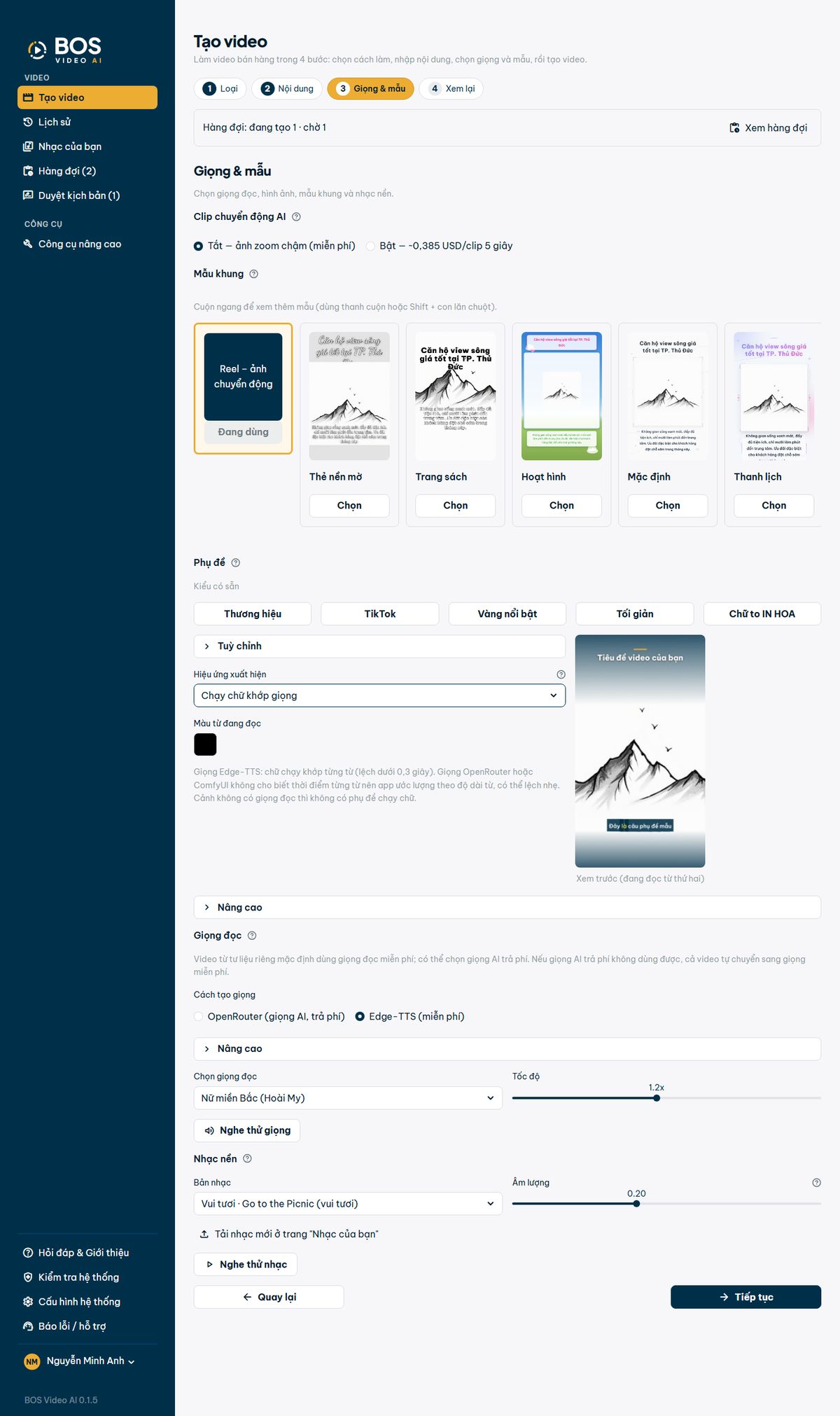
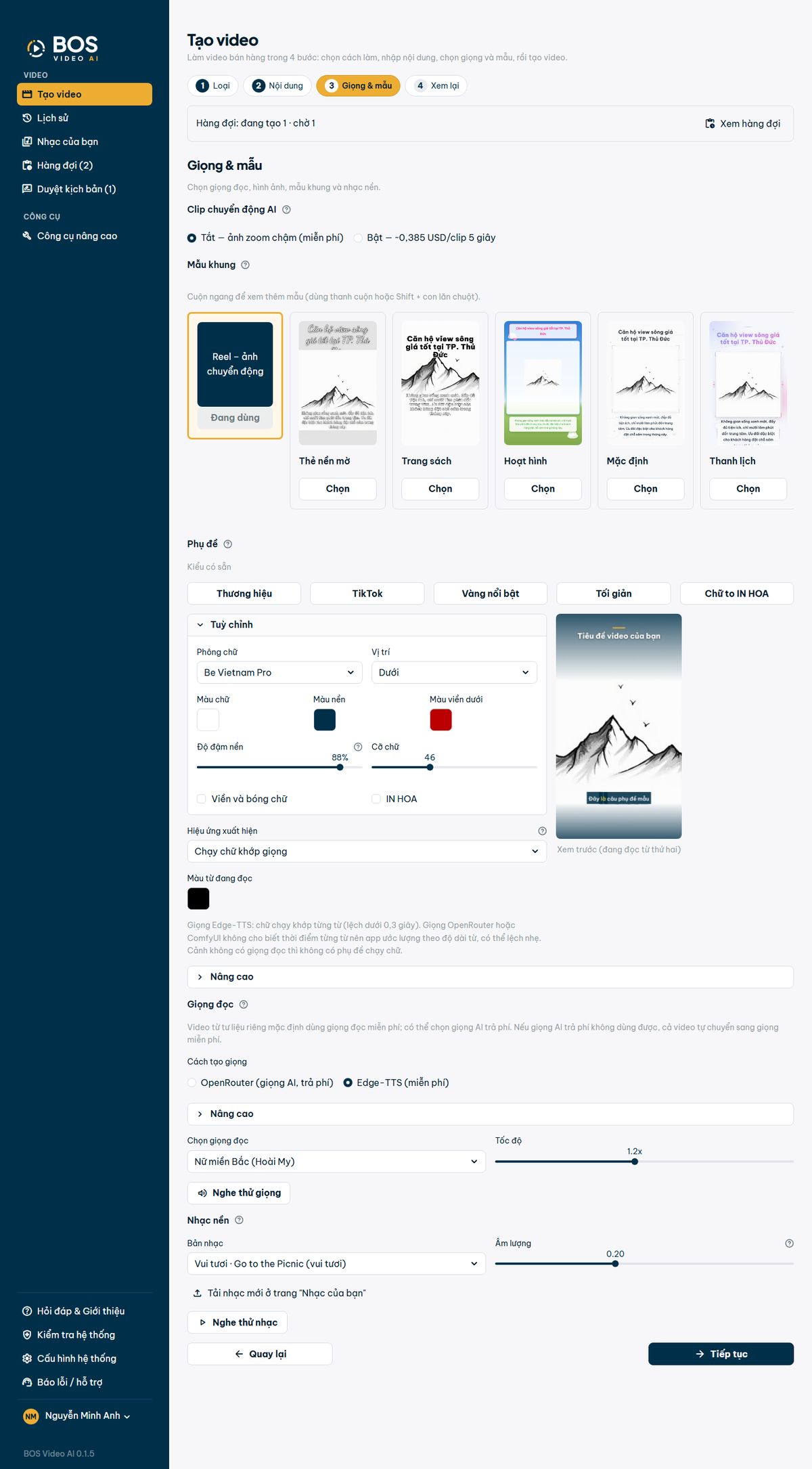
- Step 3 has every option: frame templates (scroll sideways to see more), caption styles with a preview, entrance effects, motion for photos (off: photos zoom slowly, for free; on: each scene becomes an AI clip, about 0.385 USD per 5-second clip), voice and background music.
- Voice: the “AI voice” sounds more natural and costs a very small amount; the free voice costs nothing. If the AI voice fails or runs out of balance, the whole video switches to the free voice, so voices are never mixed.
- “Word-synced captions” highlight each word as it is spoken (karaoke style) and match the free voice best. “Customize” sets the font, text color, background color and opacity, text size, position and outline.
Create video: from an idea, with script review
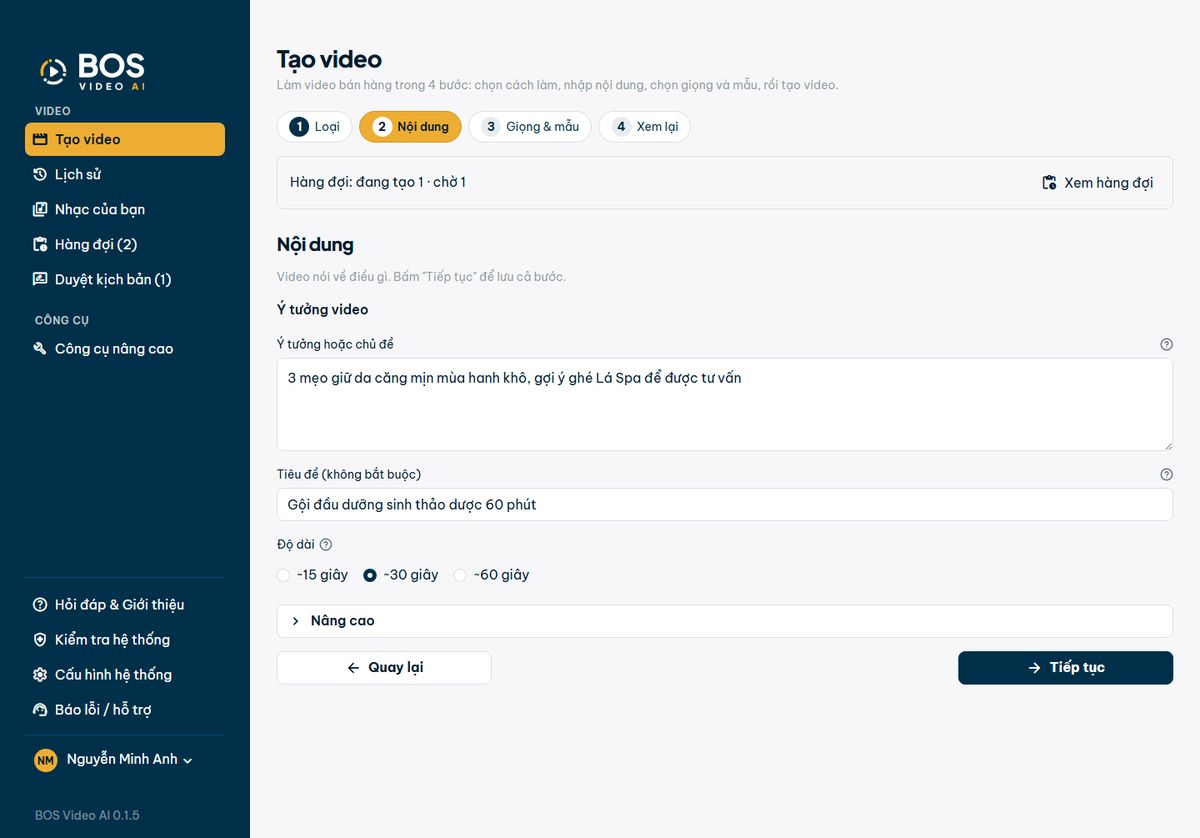
- Choose “From an idea” and type your idea in one sentence: the AI writes the script and draws the illustrations.
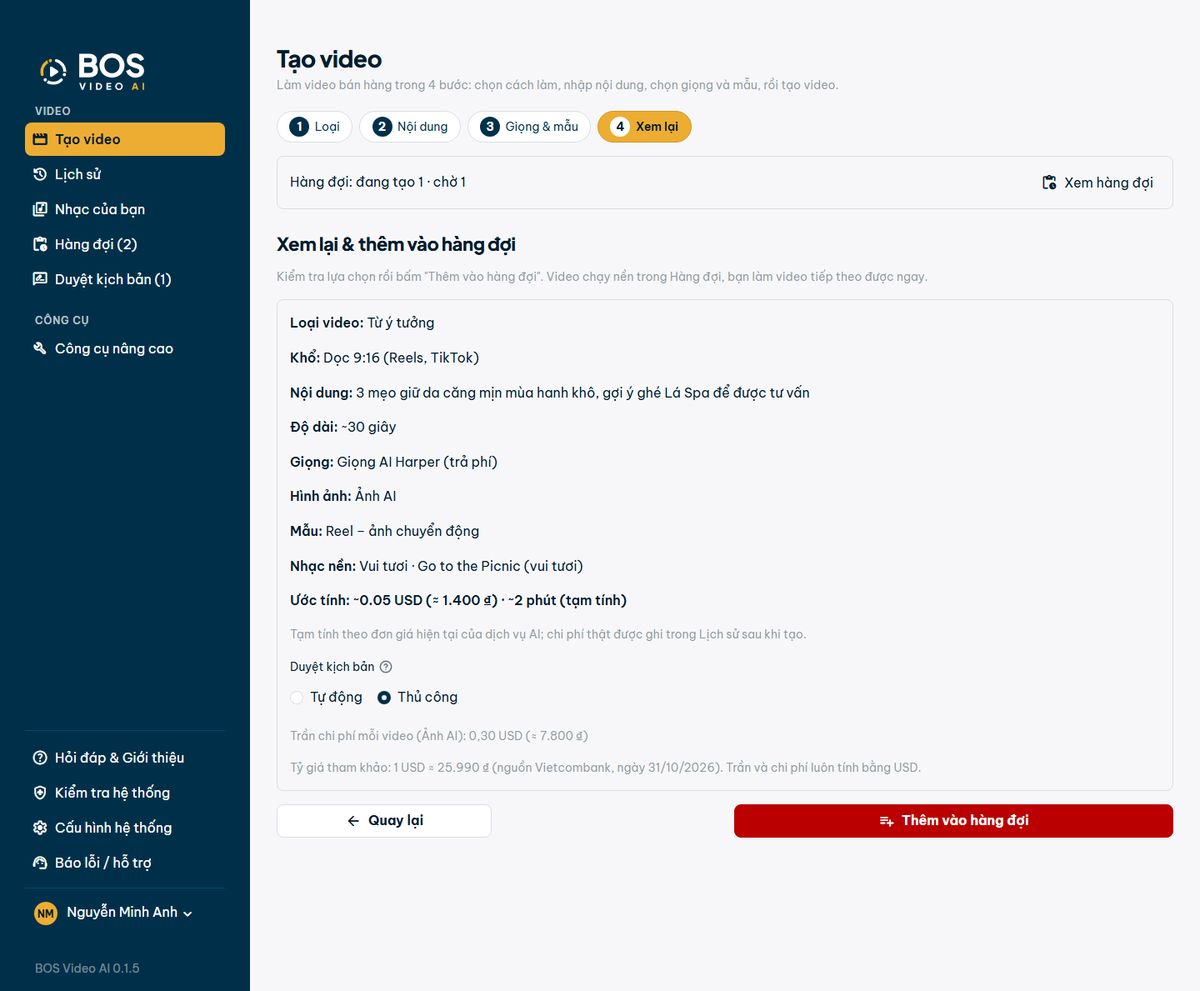
- In Step 4, the “Script review” option has two modes. Automatic: goes straight through to the video. Manual: the app stops after writing the script so you can edit and approve it before paying for voice, images and video.
- Set the default mode in Settings; you can still change it for each video.
Create video: from a link
- Choose “From a link”, paste the product page address (Tiki, Lazada, the shop's own website…) and click “Read page”. The app reads the name, price and features and puts a summary in the “Video content” box; you can edit it. Click Cancel if you don't want to wait.
- If the normal read finds nothing, click “Read with AI” so the AI opens and reads the page itself (about 0.007 USD each time; the estimate shows right below the button).
- For sites that block automatic reading (such as Shopee): take a screenshot of the product page (from the website or the mobile app), drop it into the “Screenshot of the product page” box and click “Read the screenshot”. Each image usually costs under 0.002 USD and never more than 0.05 USD. You can also paste the product description straight into the content box.
- The “Affiliate marketing” agent has a “Product link” field that reads pages the same way.
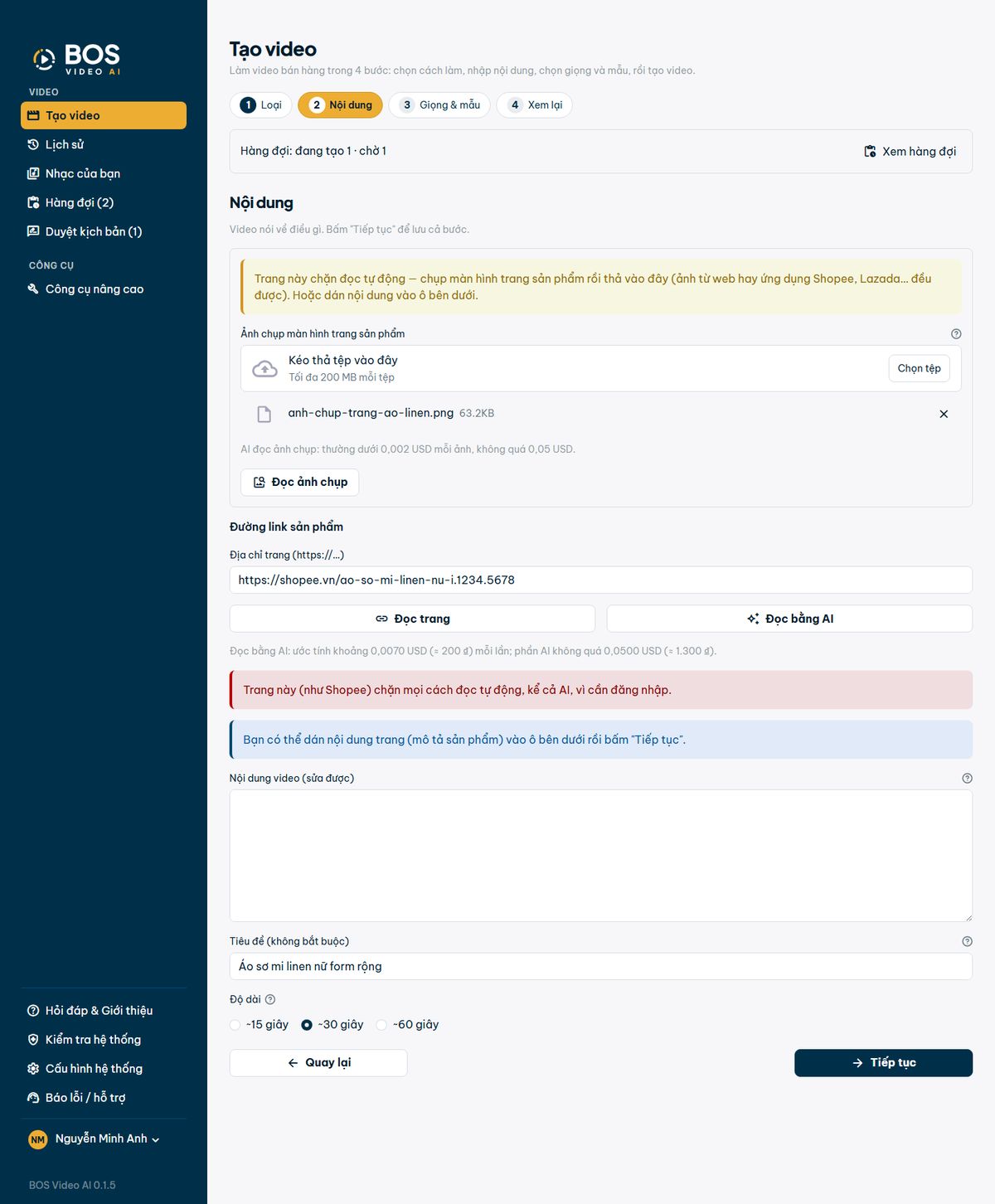
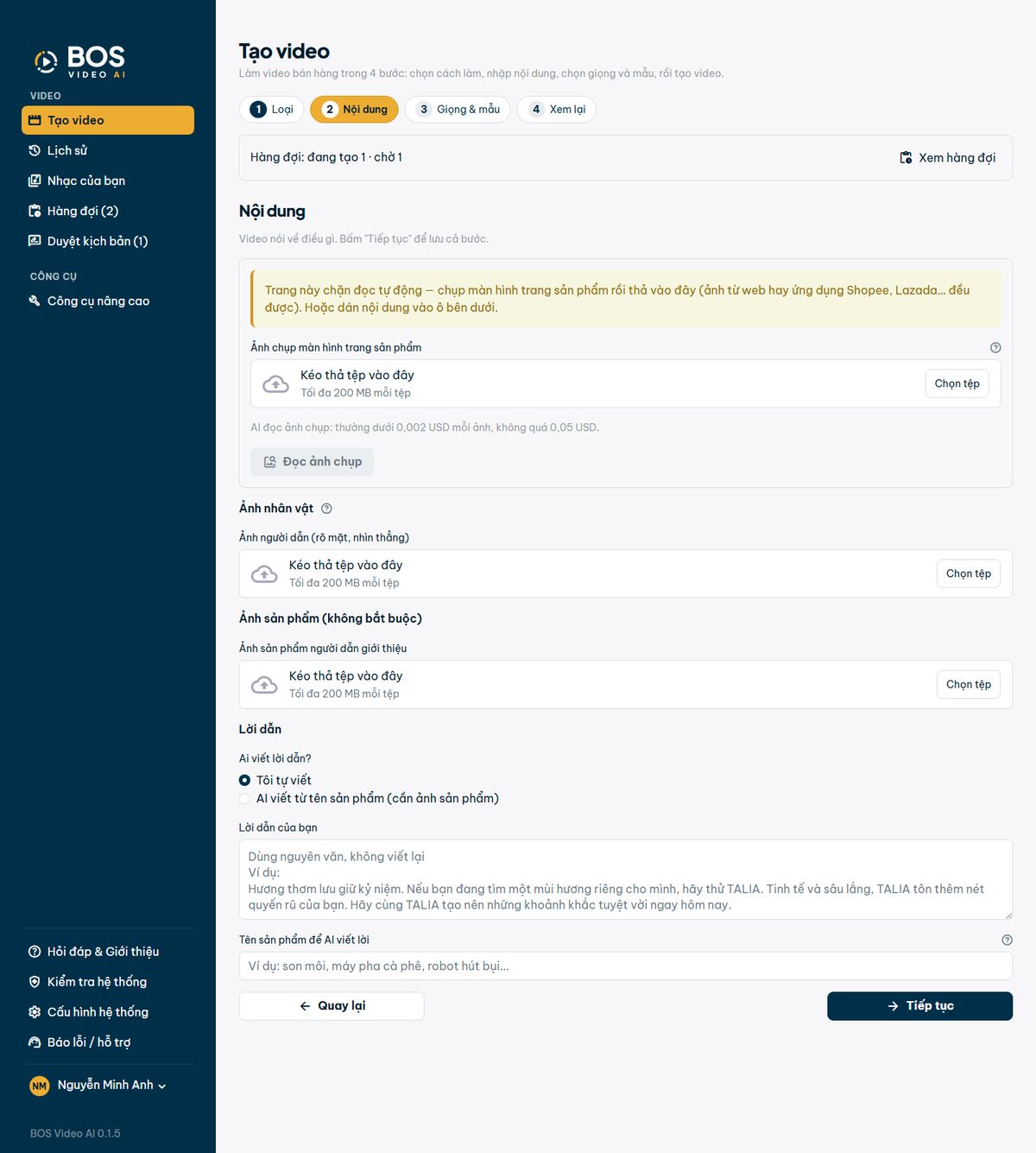
Create video: virtual presenter
- A virtual character reads the product introduction. Upload a clear, front-facing photo of the presenter; a product photo is optional.
- Write the narration yourself or let the AI write it from the product name and photo.
- This method needs a video generation service connected in Settings. If none is connected, the “Virtual presenter” card in Step 1 says what is needed.
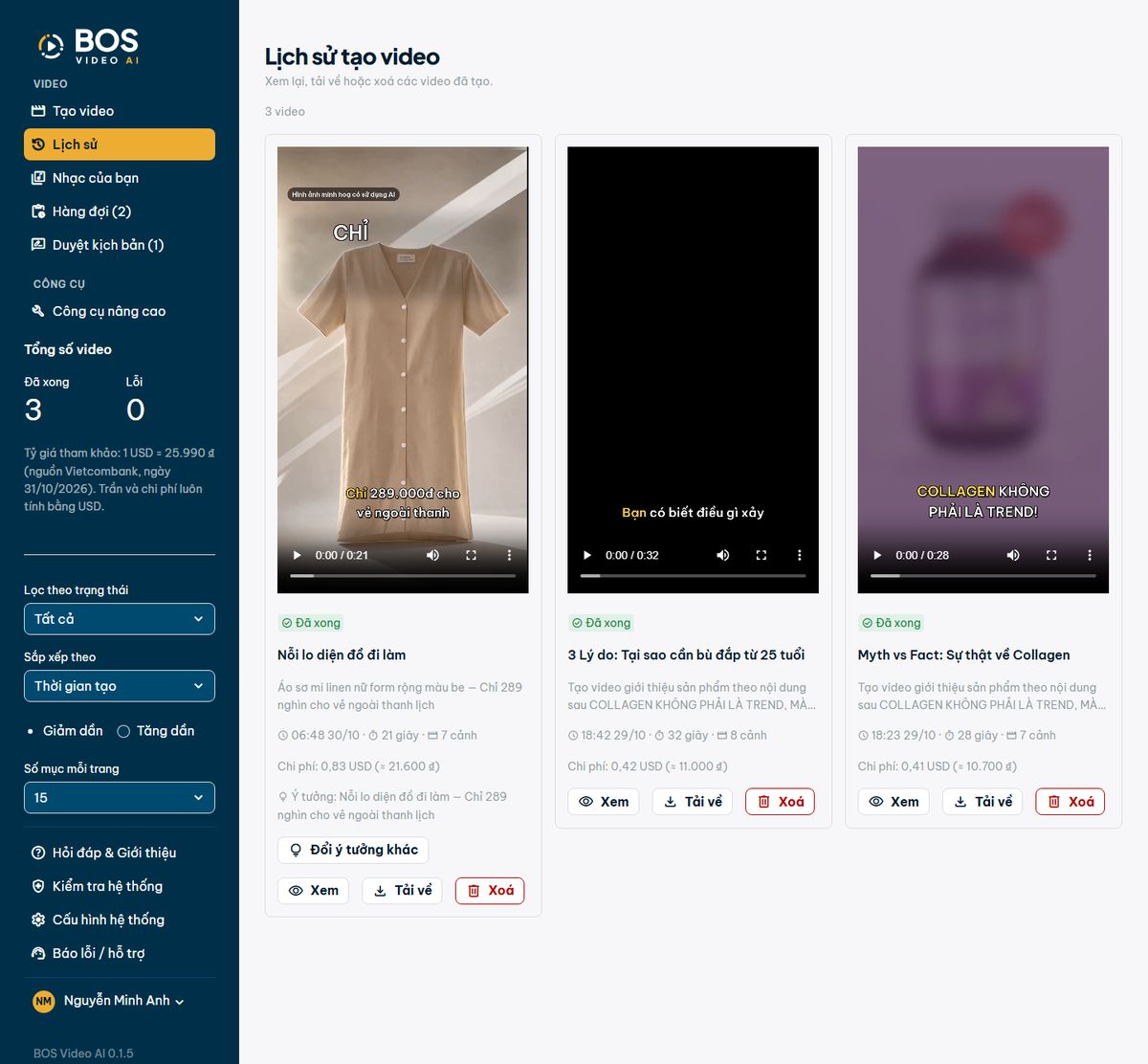
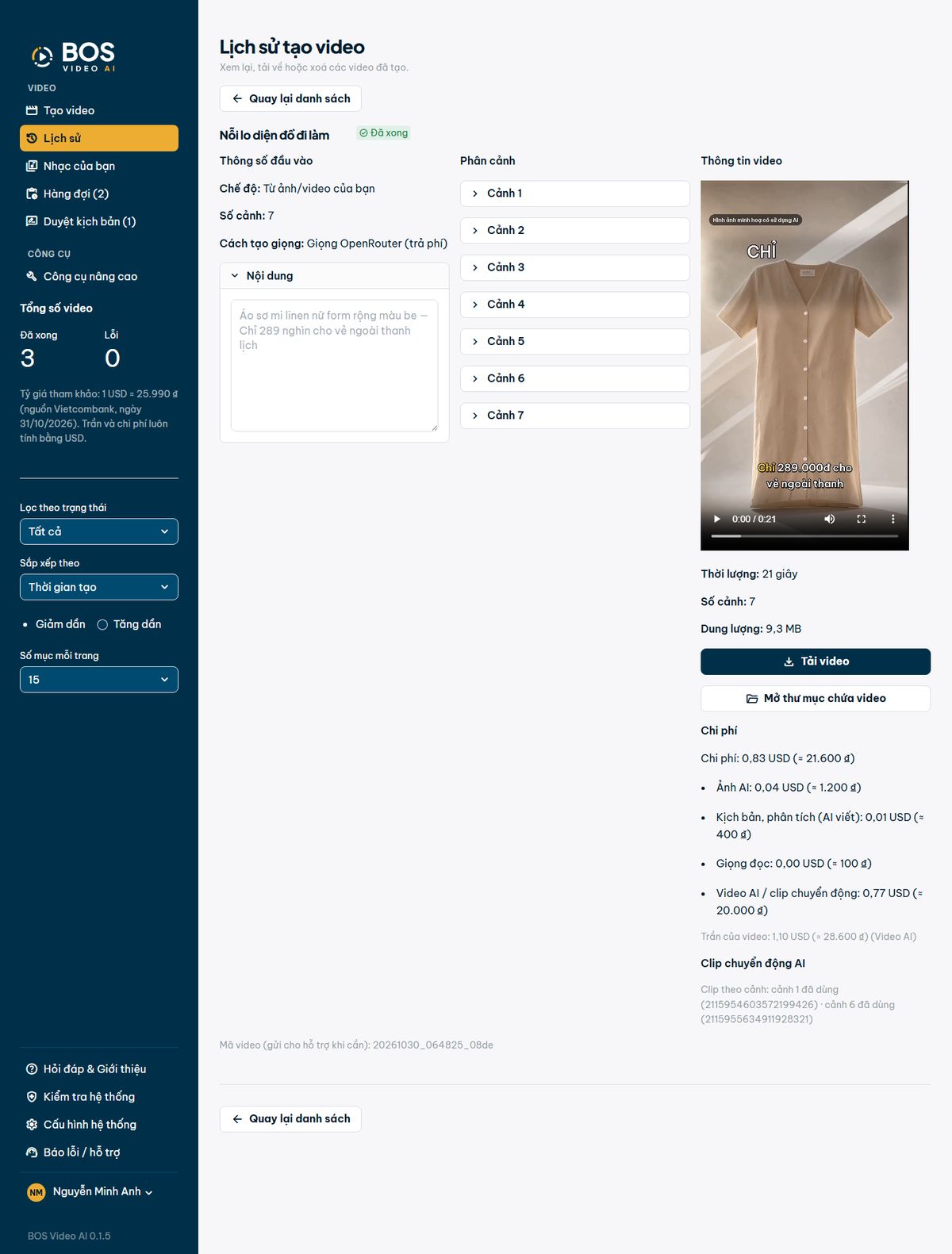
History
- Every video you have created appears in a grid of cards. Each card has a video player, a status label (Done, Creating, To review, Failed), the title, the start of the content, creation time, duration, number of scenes and actual cost (USD and VND). Filter by status; sort by time, title or duration.
- Each card has three buttons: “View” opens the details, “Download” saves the video to your computer, and “Delete” deletes the video permanently (the app asks again: click “Delete” to delete it or “Keep it” to keep it).
- The details page has a player in the video's own format (vertical videos show vertically), the input settings, the scenes with each scene's narration, the cost broken down by part (script, voice, AI images, AI clips) and the video's cap, plus “Download video” and “Open video folder” buttons. Click “Back to the list” to return to the card grid.
- Videos are also saved in the
Documents\bos-video-ai\outputfolder. - For product review videos, the “Idea” line shows the story that was chosen. Click “Try another idea” to make another video from the next idea for the same product.
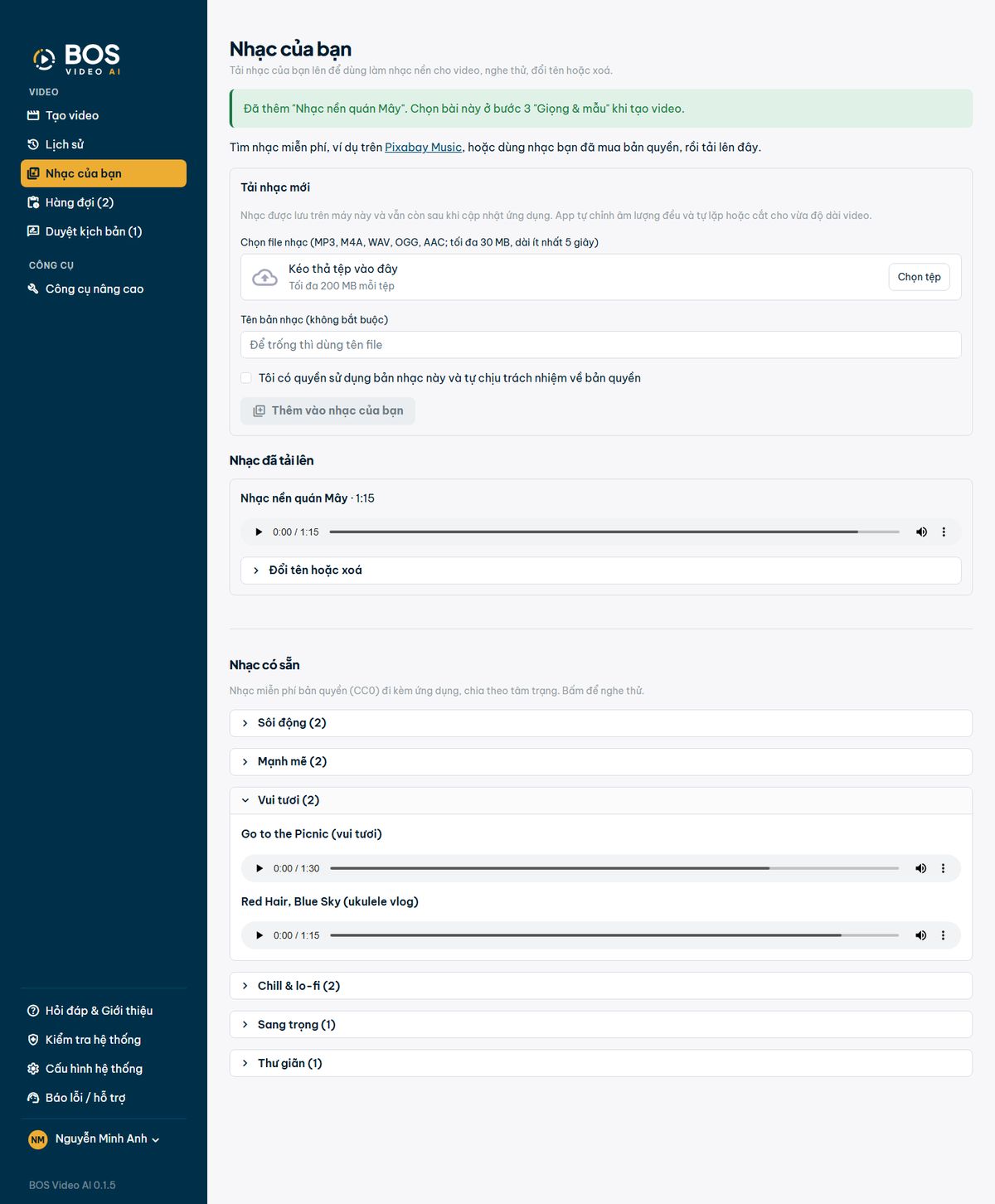
My music
- Upload your own music to use as background music: MP3, M4A, WAV, OGG or AAC files, up to 30 MB and at least 5 seconds long. Give it a name (optional), tick the box confirming you have the right to use the track, then click “Add to my music”.
- Your music is stored on your computer and stays after app updates. The app evens out the volume and loops or trims the track to fit the video length. You can preview, rename or delete uploaded tracks.
- “Built-in music” is royalty-free music included with the app, grouped by mood (Energetic, Powerful, Cheerful, Chill & lo-fi, Luxury, Relaxing). Pick a track in Step 3 “Voice & template” when you create a video.
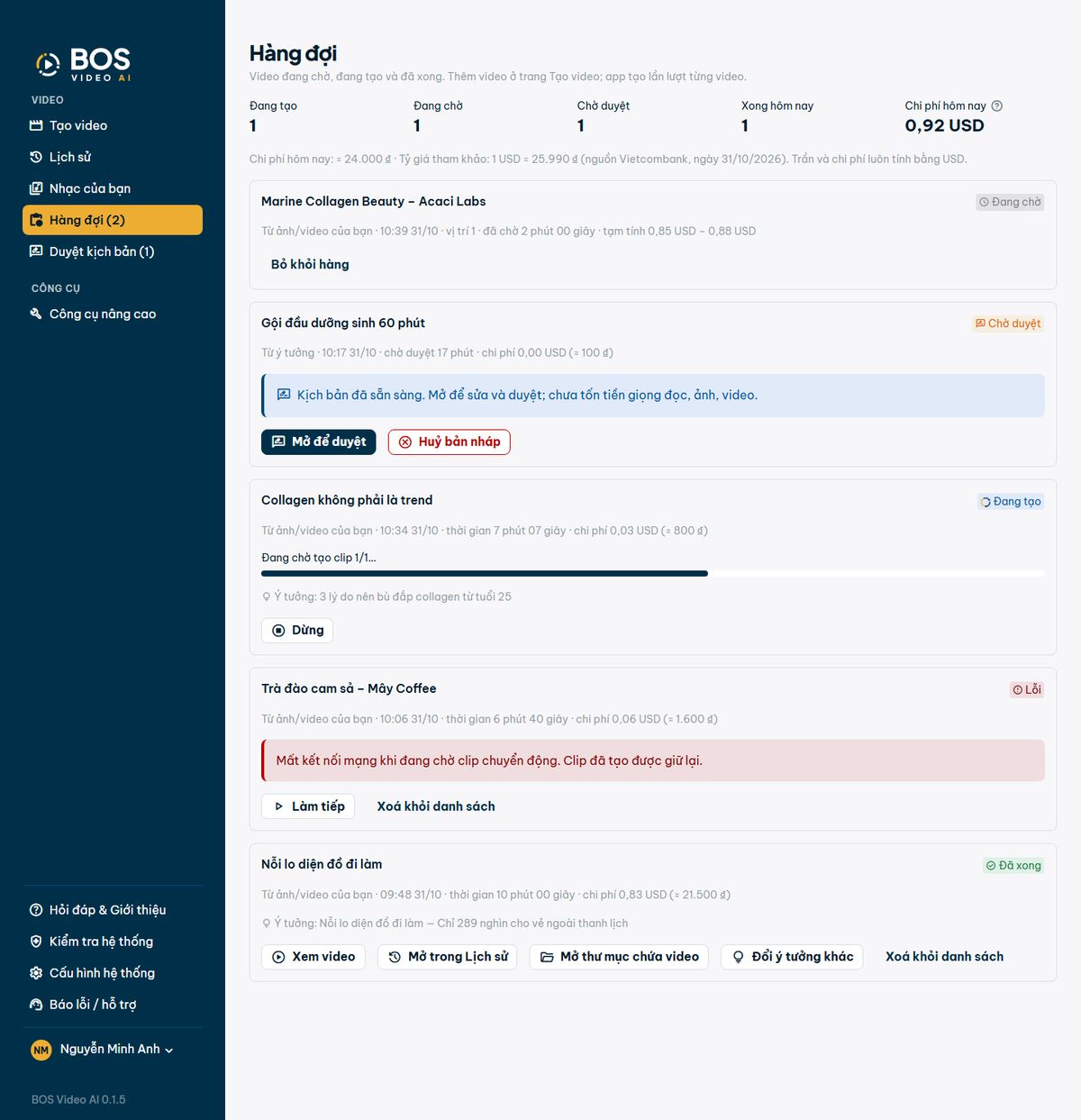
Queue
- Each time you click “Add to queue”, the video is placed here and runs in turn (1 video at a time by default; on a powerful computer you can raise this to 2–3 in Settings). The number in the “Queue (N)” menu item is the number of videos waiting and running.
- The top of the page shows how many videos are running, waiting, waiting for review and done today, and today's cost. Each video has a progress bar with the current step in plain words (“Coming up with ideas…”, “Waiting to create clip 1/2…”, “Putting the video together…”), the time and the cost.
- Each card has a status label: Waiting, Creating, To review, Done, Failed. The actions depend on the status: Stop (creating), Remove from queue (waiting), Open to review (to review), Watch video, Open in History, Open video folder and Try another idea (done), and Remove from list.
- A video that fails partway through has a “Continue” button: the app reuses every scene and AI clip already made, so you are not charged twice.
- Going to another page, reloading or quitting the app does not lose progress: waiting videos continue when you sign in again. The queue pauses automatically when your balance is not enough for the next video. Old records are cleared after 7 days; videos in History are not deleted.
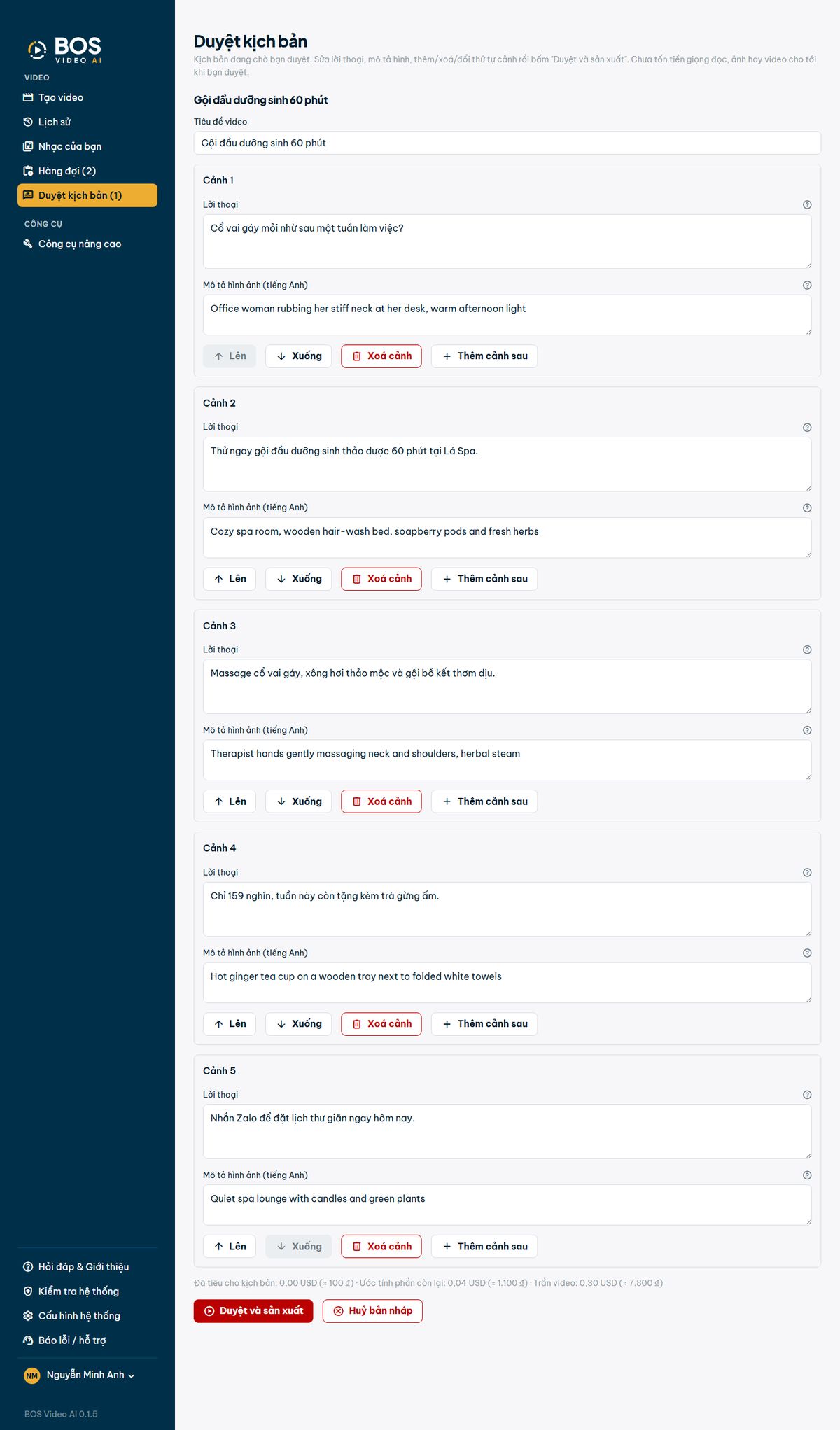
Script review
- This item appears in the menu only when a script is waiting for review, with a count, for example “Script review (1)”.
- Edit each scene's title, dialogue and image description; add, delete or reorder scenes. The bottom of the page shows the amount already spent on the script, an estimate for the rest and the video's cost cap.
- Click the red “Approve and produce” button: the video is created right after the videos already running. Click “Cancel draft” (red outline) if you no longer need it; the app asks before cancelling.
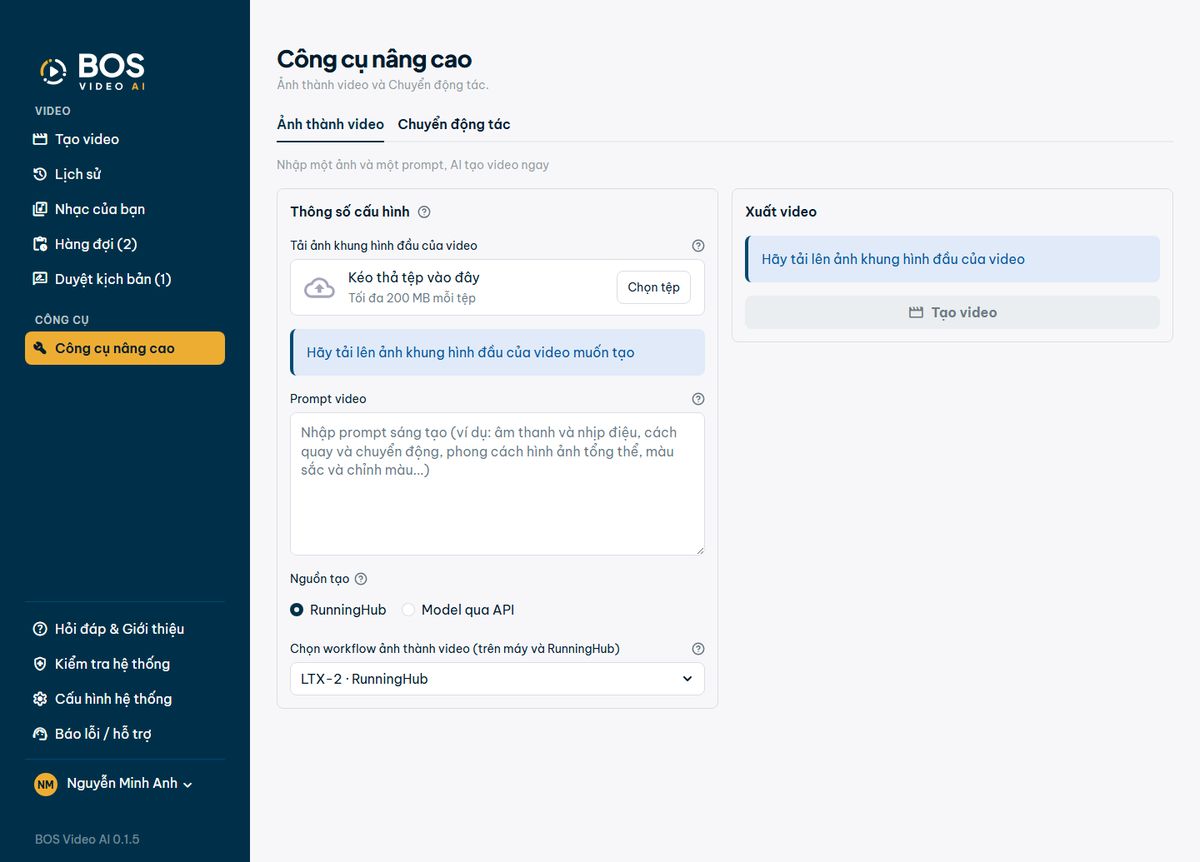
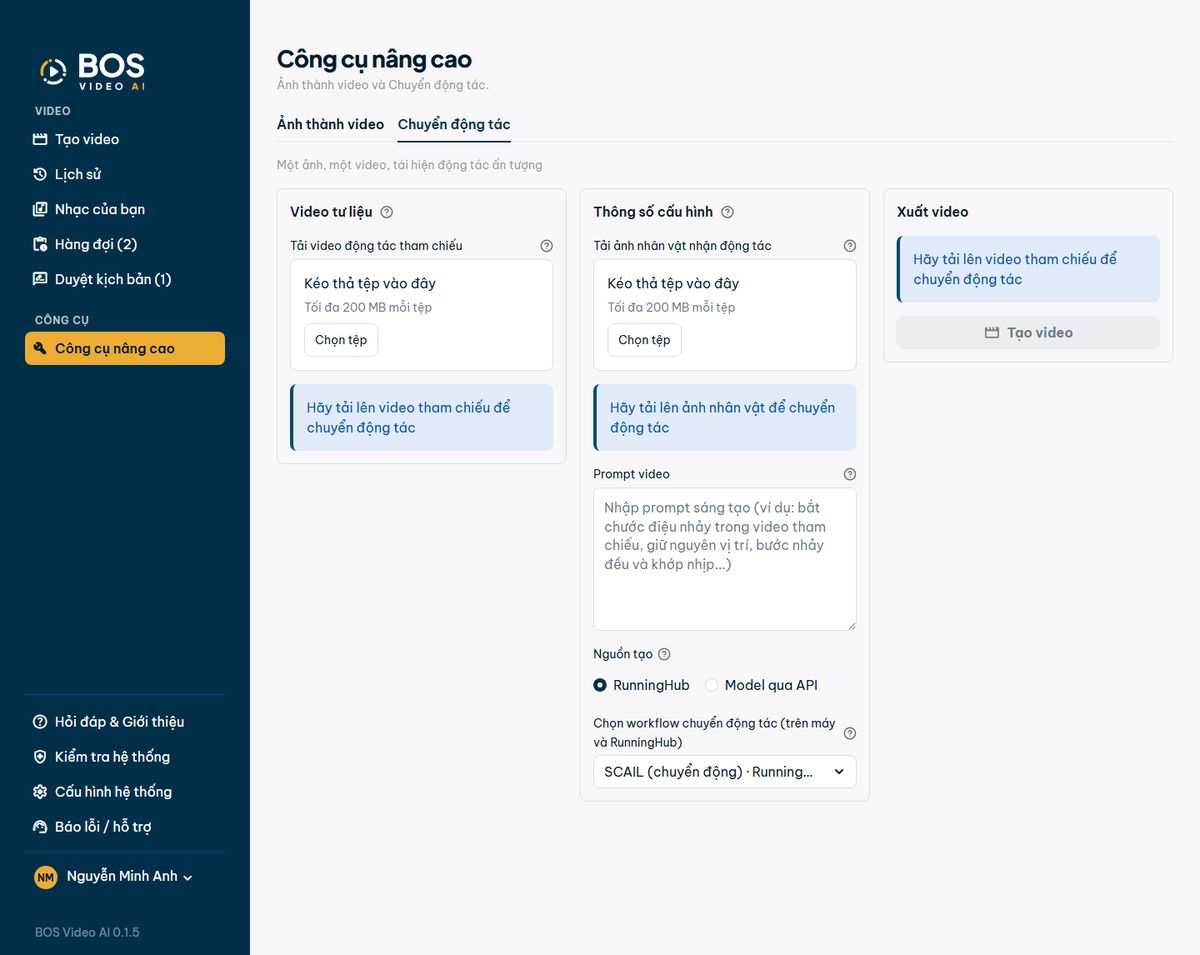
Advanced tools
- For experienced users: “Image to video” turns a first-frame image and a one-sentence description into a video clip; “Motion transfer” applies the motion from a sample video to a character image.
- This item appears only when a video generation service is connected in Settings.
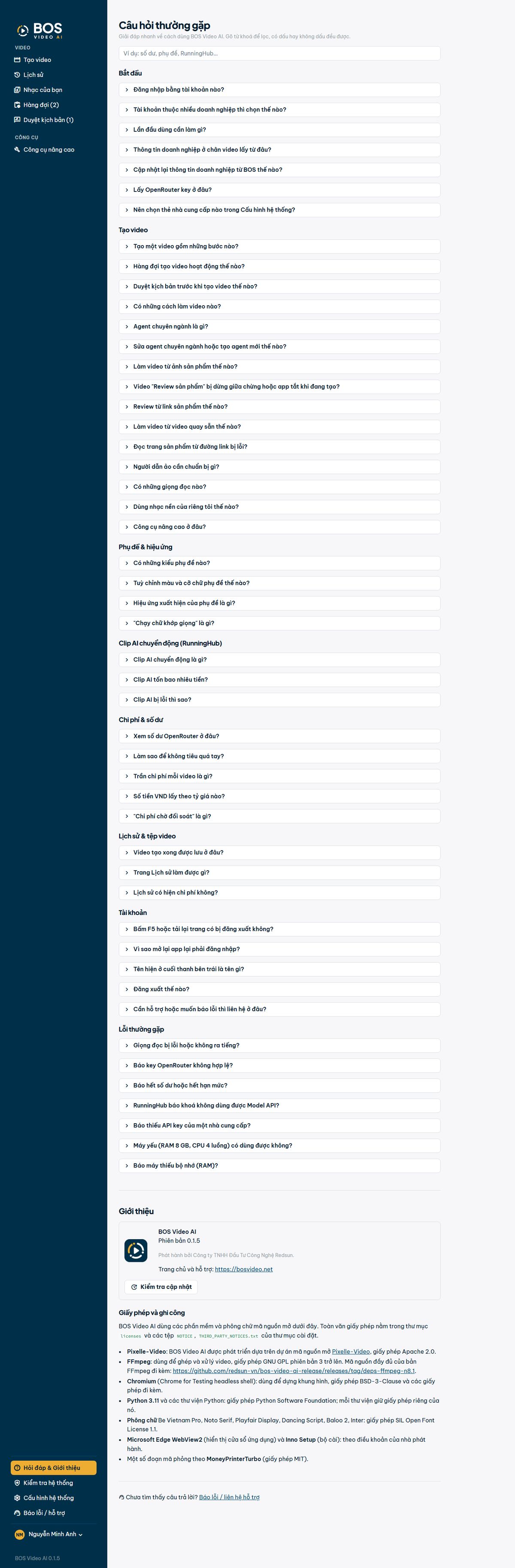
Help & About
- Frequently asked questions are grouped into: getting started, creating videos, captions and effects, AI motion clips, costs and balance, history and video files, account, and common errors. The full version is on the FAQ page.
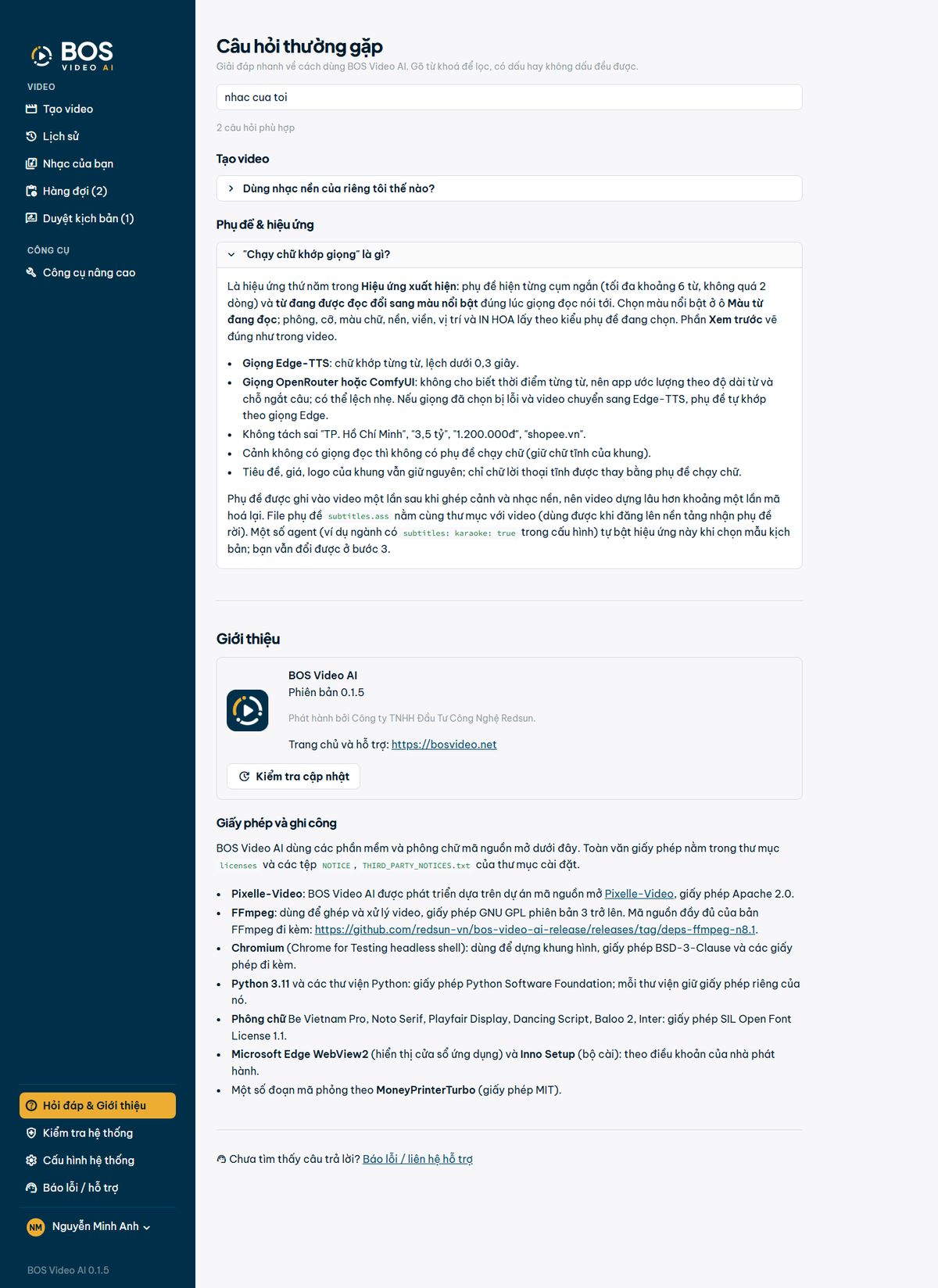
- Type keywords in the search box. Vietnamese words work with or without diacritics (for example “nhac cua toi” finds “Nhạc của tôi”).
- The “About” section at the bottom of the page shows the app version, publisher, homepage and support site (bosvideo.net), license and credits.
- The “Check for updates” button looks for a new version. If one is available, click “Update”: the app downloads it, closes and reopens on the new version, and your data is kept.
System check
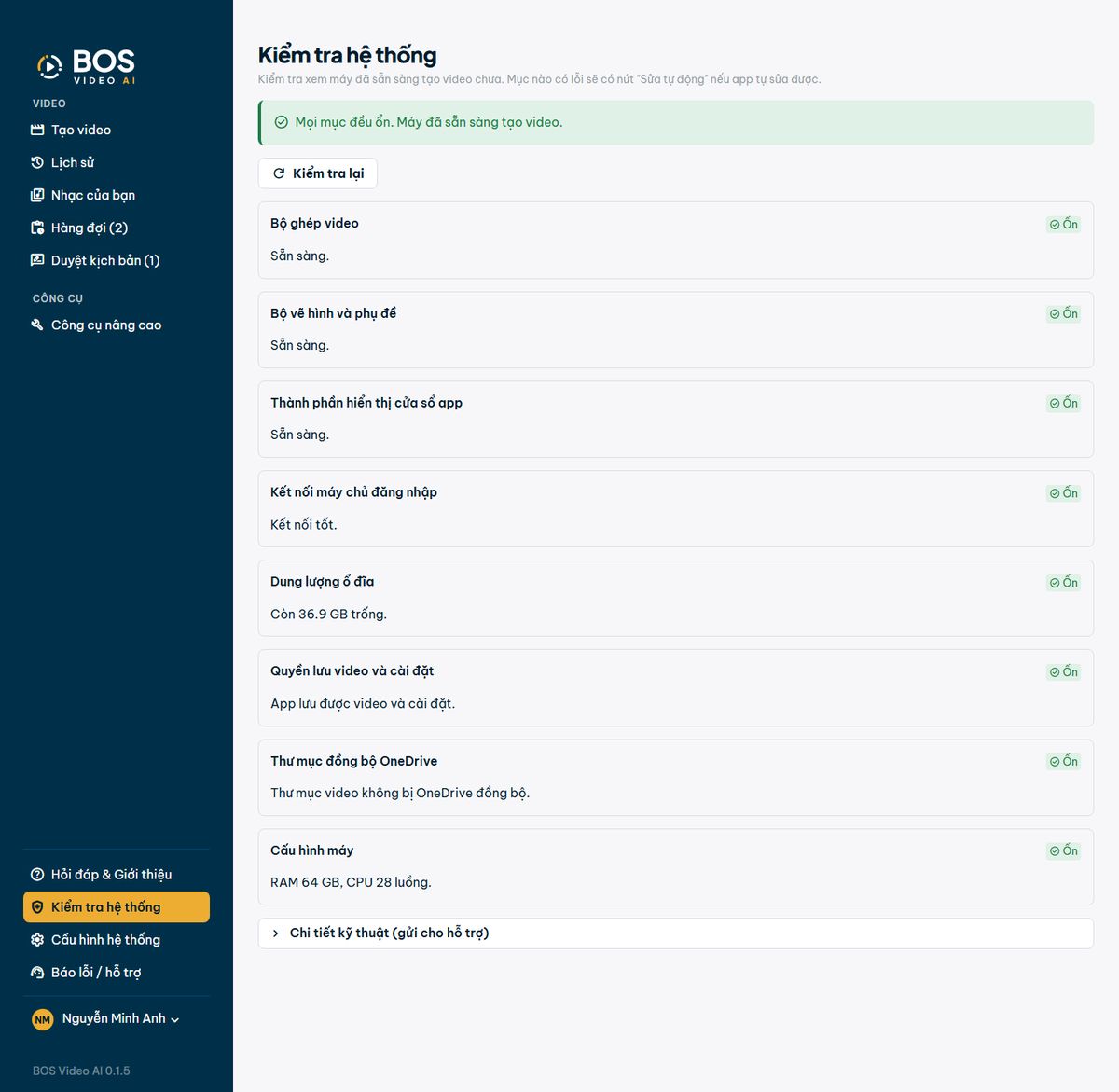
- Checks whether your computer is ready to create videos: the video assembler, the image and caption renderer, the component that displays the app window, the connection to the sign-in server, disk space, permission to save videos and settings, and folders synced by OneDrive.
- The “Computer specification” line shows your RAM and number of CPU threads. A computer with 8 GB of RAM or less, or 4 CPU threads or fewer, counts as low-spec: with “Video quality” set to Automatic, the app creates 720p videos, one at a time, so the computer does not freeze.
- Minimum requirements: Windows 10 or 11, 64-bit, 8 GB RAM, a 4-thread CPU (6th-generation Core i3/i5 or newer), and at least 10 GB free on drive C (SSD recommended). For smoother 1080p videos, use a computer with 16 GB RAM and a CPU with 6 or more threads. While a video is being created, the app reminds you to close Chrome and Zalo so the computer runs more smoothly.
- A failed item has a “Repair” button when the app can fix it itself. “Technical details” is the part to send to the support team when needed. This page opens even before you sign in.
Settings
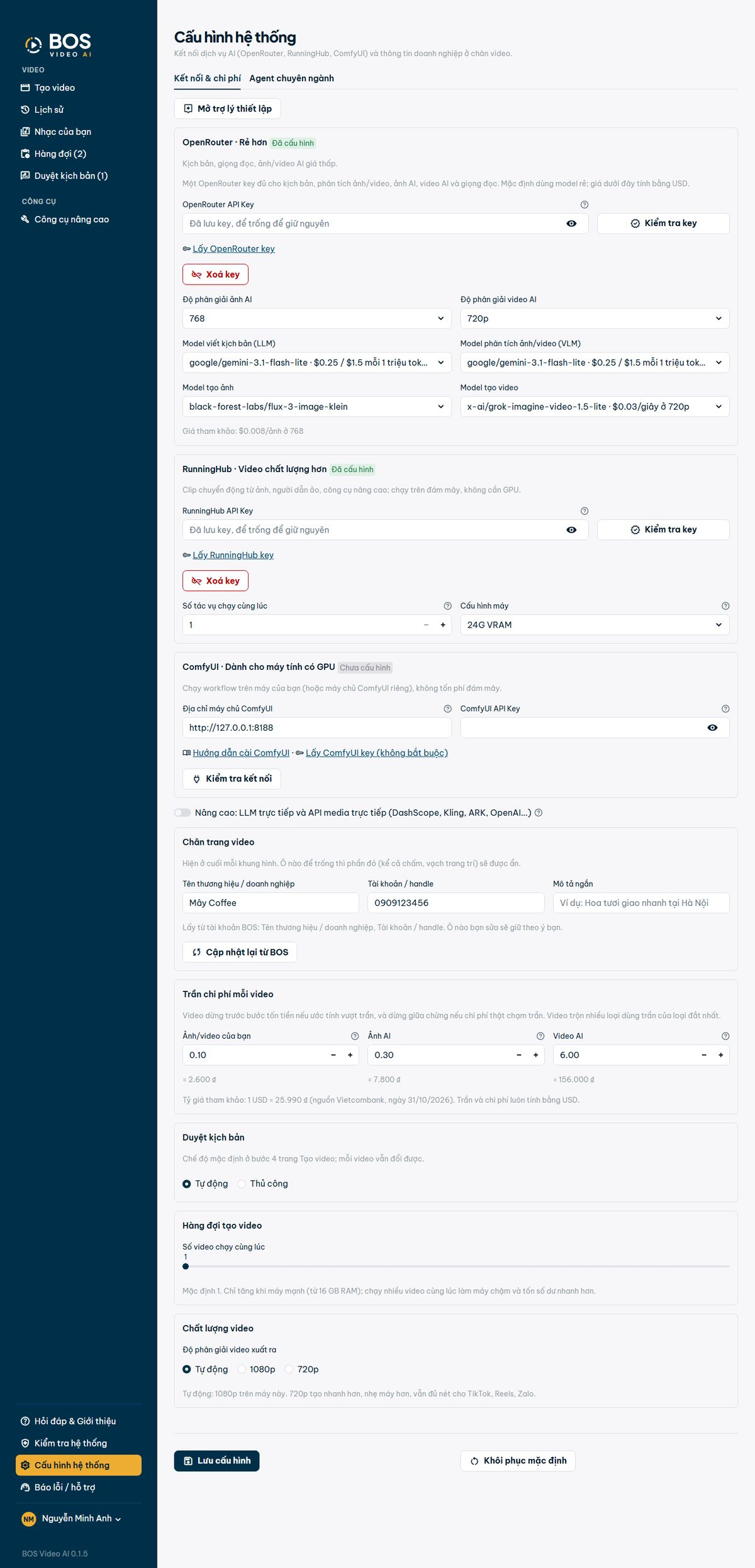
- The “Connections & costs” tab has three AI providers side by side: OpenRouter (cheaper: low-cost script, voice, AI images and AI video), RunningHub (higher-quality video: motion clips, virtual presenter, advanced tools) and ComfyUI (for computers with a graphics card). Each card shows “Configured” or “Not configured”.
- Paste the key, then click “Check key” and “Save settings”. A saved key is not shown on screen again. Leaving the key box empty keeps the old key; to remove it, click “Remove key”.
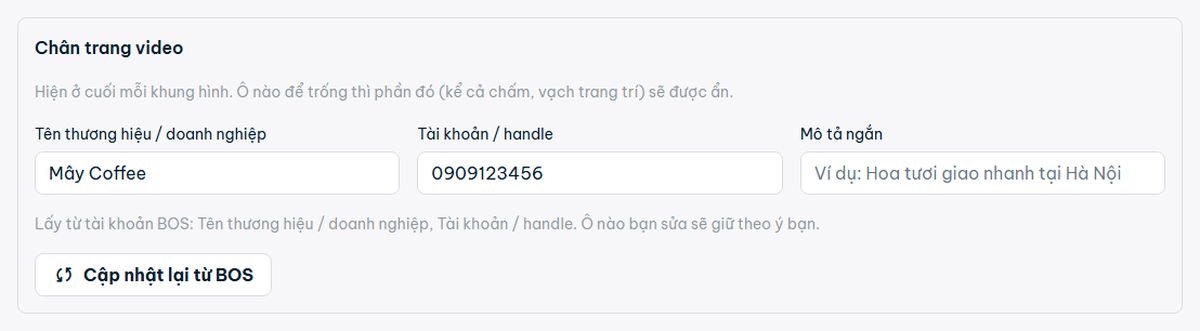
- The video footer (business name, account, short description) is prefilled from the BOS account; the “From your BOS account” line shows which fields come from BOS. Fields you edit stay as you set them, even after you sign in again. Click “Update again from BOS” to fetch the details from BOS again and replace the fields (fields BOS leaves empty stay unchanged).
- “Video quality” sets the resolution of the output video: Automatic (1080p, or 720p on low-spec computers), 1080p or 720p. 720p is faster and lighter on the computer, and still sharp enough for TikTok, Reels and Zalo.
- The same tab also has: a cost cap per video for each kind (your images/videos, AI images, AI video; a video stops before a paid step if the estimate exceeds the cap), the default Script review mode, and the number of videos that run at once. “Restore defaults” keeps your keys and always asks for confirmation.
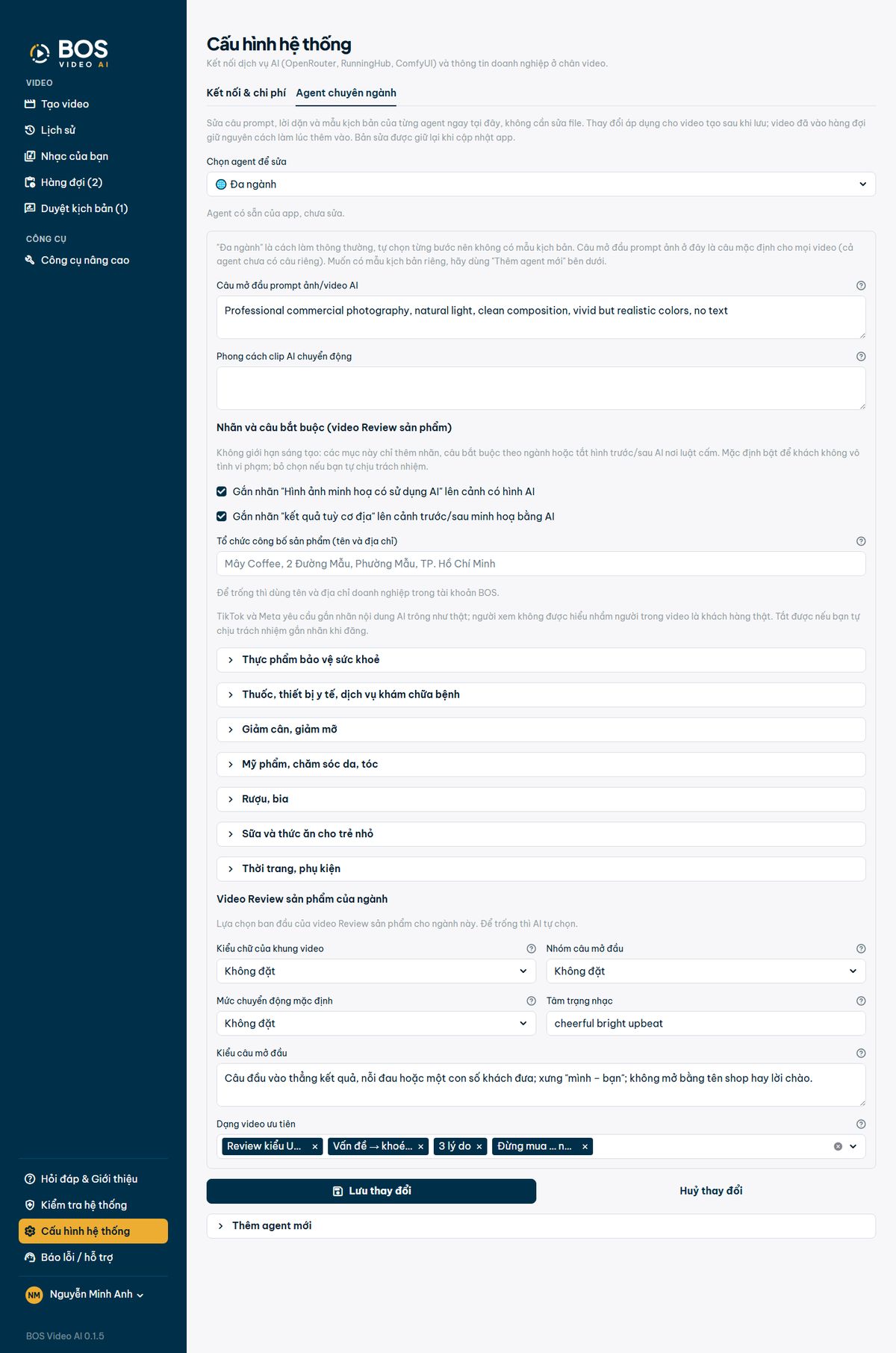
- The “Industry agents” tab: edit each agent's AI instructions, default values, script templates, quick-fill fields, labels and required industry phrases, or create a new agent. Changes apply to videos created after you save and are kept when the app updates.

Report an issue / support
The last menu item opens the app's homepage and support site, bosvideo.net, in your browser so you can report an issue or ask the support team. Include screenshots and describe the steps you took. You can also write directly to bosvideo@redsun.vn.
Account
- The account block at the bottom of the sidebar shows your name in the BOS account (your employee name), the balance of each connected AI service (yellow text when below 1 USD; hover for an explanation) and the app version. Balances update every few minutes.
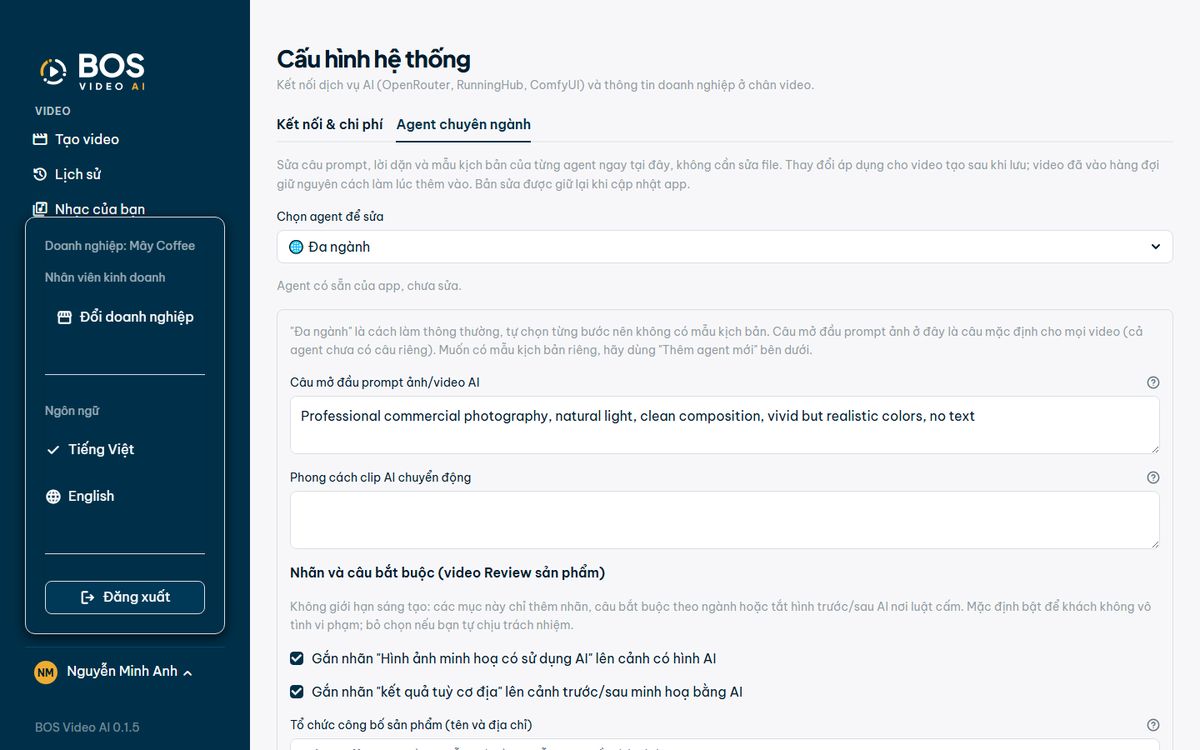
- Click your name to see the current business and your role, change the language (Tiếng Việt / English) or sign out. Accounts that belong to two or more businesses also get a “Switch business” button.
Screenshots are from a test build with a sample account and sample products; History and Queue show sample videos that were already created; the balance line in the sidebar is hidden.